What's New
Note: Full release information is available in the Altify November '26 Release Notes. For help with installing, localizing or upgrading to Altify 9.21, see PDF Installation and Upgrade Guides.
Enhancements are delivered in the following areas:
MaxAI
MaxAI Provenance Badging
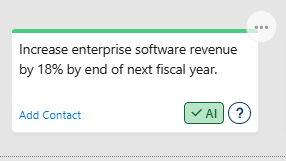
When account details in an account plan, row details in an Account Manager plan or account/opportunity insights are generated via an AI agent, their AI provenance is now indicated with the following green badge:  . An example of an insight generated by an AI agent is shown below.
'Generate with MaxAI' button improvements
-
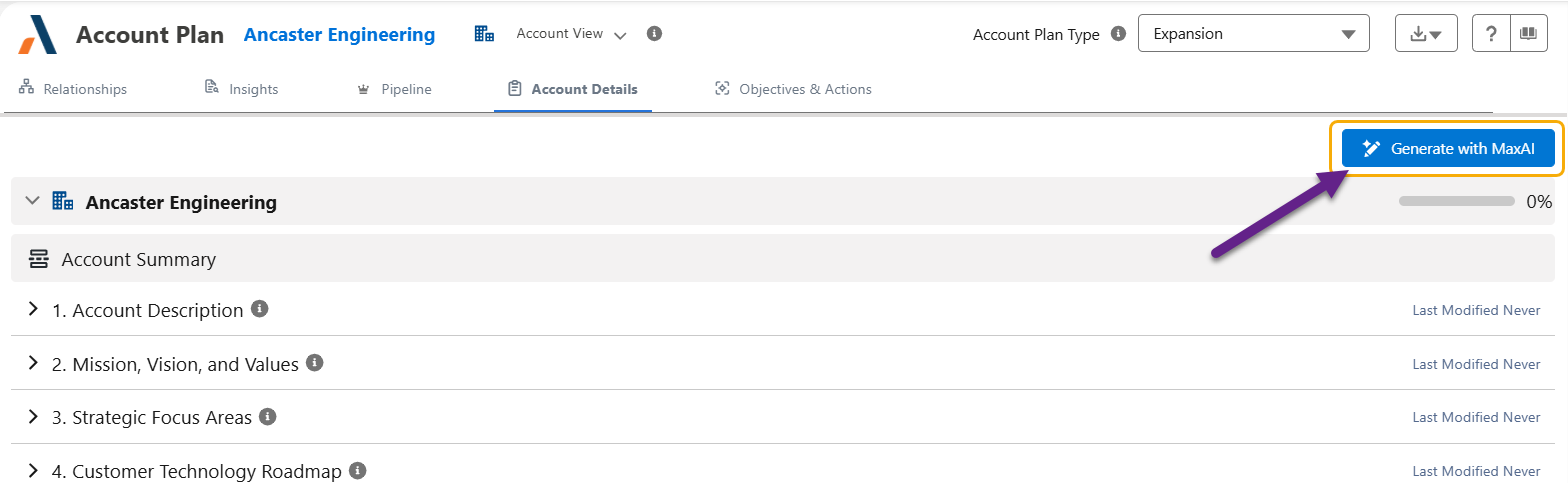
With a single click, a new button added to the top of Account Details page (shown below) will generate answers for all MaxAI-configured questions listed for the account plan.
-
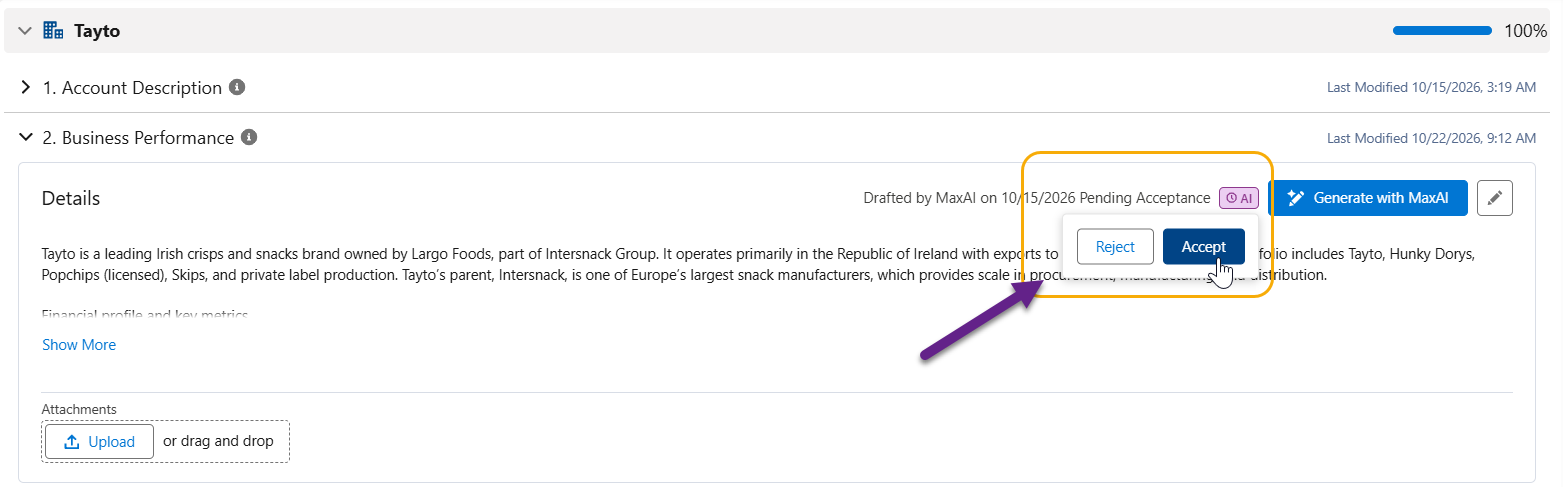
Recognizing that you cannot check data generated by the button before it is added to Altify, an acceptance process is now in place for account/row details and insight maps.
-
A purple badge
 shows that the content is pending acceptance . Clicking this badge allows you to accept or reject the proposed answer/insight (as shown below). Editing an item also accepts it.
-
A green badge
indicates that it has been accepted.
For more information, see the following:
-
Account plan updates
With MaxAI Revenue Execution agent or MaxAI’s MCP Servers you can now do the following:
-
Add and qualify opportunities on the Pipeline page
-
Link objectives to insights and opportunities
-
Choose the section for a new insight
For examples of prompts that you can use, see MaxAI Prompt Library for Account Planning .
AI Agnostic Connector
If your organization sets up the AI Agnostic Connector, your users can avail of the Generate with MaxAI button with responses informed by a large language model (LLM) provider of your choosing. The Generate with MaxAI button is available in Account Details, Row Details, and on account and opportunity insight maps - generating AI sourced information and insights with a single click.
For more information, see Configuring the AI Agnostic Connector.
Altify MCP Servers
AI response visualization
Selected Altify MCP tools can now display their results as a visualization: a branded visual card shown in the AI app conversation alongside the text response. Once activated, your users can view current relationship maps, insight maps, assessments, actions and sales process status in a familiar Altify format, without leaving the AI app.
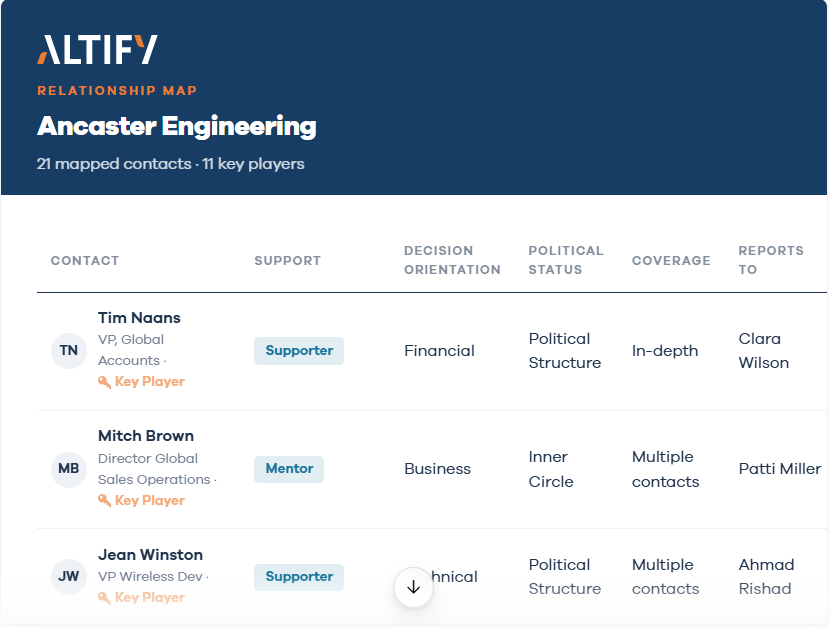
Visualization needs to be enabled and formatting options include changing the logo and colors. For more information, see Configuring the AI Agnostic Connector.
AI data usage monitoring
A new read-only tool, altify_read_ai_usage, on the Retrieve MCP server lets users ask their AI client how MaxAI’s MCP Servers are being used. For example, a user might ask “What has Kevin been doing this week?” or “Which AI features are most popular?” The answer summarizes call counts grouped by person, feature, MCP server, day, or hour. Where tools use an LLM, it also includes token figures.
The same log data also informs a suite of reports that are available to admin users:
-
AI Feature Usage by User shows how often each user invoked each MaxAI MCP tool.
-
AI Feature Usage by Feature shows how often each tool was invoked across all users.
-
AI Token Consumption shows LLM tokens consumed per tool and per user.
For more information, see Monitoring MaxAI MCP Usage.
Relationship Map
Contacts who have left - read-only and new redesigned
Contacts who are recorded as having left their company are now shown on the relationship map with a grey card and their name struck through, replacing the previous yellow highlighting – as shown in the example below.
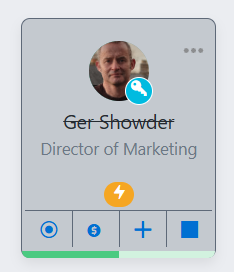
These contacts are also read only apart from the ability to mark associated actions as complete and remove them from the map.
For more information, see Highlighting of Contacts Who Have Left the Company.