Highlighting of Contacts Who Have Left the Company
Your admin can configure Altify so that your

The contact card is now read only.
How a contact is recorded as having left
Your admin creates a custom field on the Salesforce Contact record that records whether a contact has left their company. When you set this field to Yes, the contact is shown as having left. The field can be set:
-
Automatically, if your org is integrated ZoomInfo. ZoomInfo updates the field when it detects that a contact has moved.
-
Manually, when you or another user updates the relevant field on the contact's Salesforce record because you have found out that they have left.
If a contact has been recorded as having left by mistake, clear the field on the contact's Salesforce record. The contact's card then returns to normal.
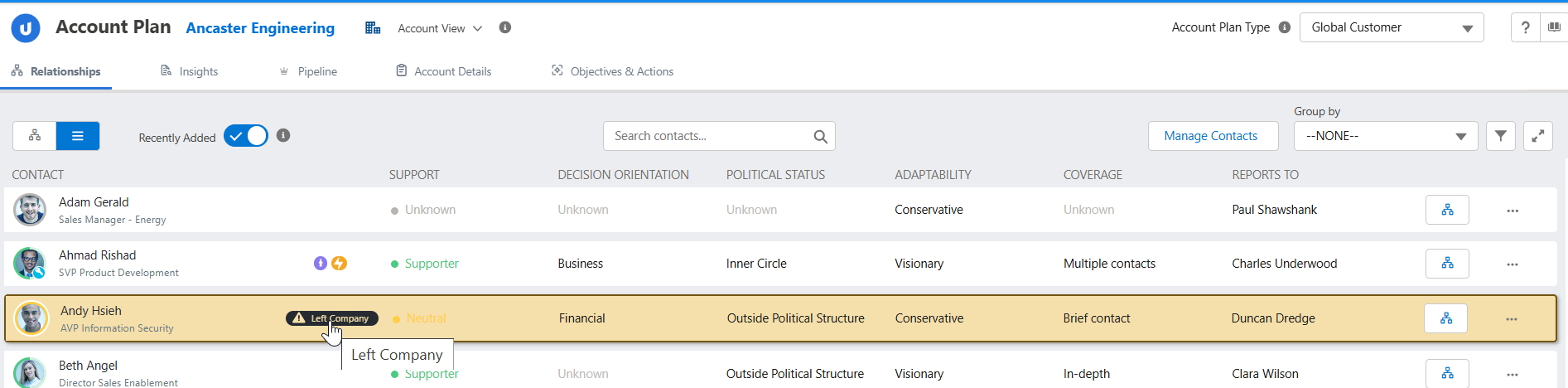
List view and information panel
The contact is also flagged in the
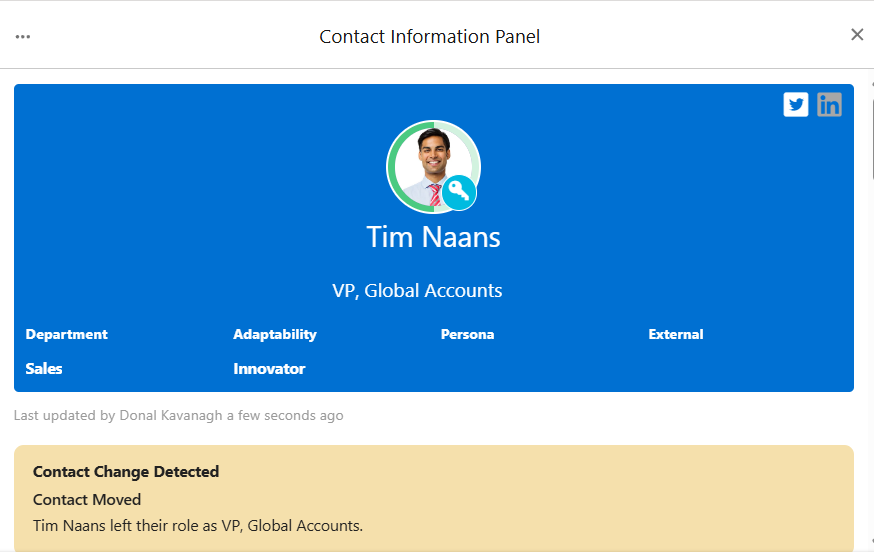
On the contact's information panel, a message shows that the contact has left, and the panel is read-only. You can view the contact's details, but you can't edit them or add relationships, decision criteria or files. You can still:
-
Mark the contact's actions as complete. Completed actions are then removed from the panel.
-
Remove the contact from the
For more information, please speak to your administrator.