'One Click' Row Detail Completion with MaxAI
Need some assistance with completing row details? MaxAI, Altify's AI tool powered by Agentforce, is on hand to unearth useful answers and save them to your Account Manager plan.
Note: This option is only available if your administrator has installed Altify’s MaxAI extension package or configured the AI Agnostic Connector, and enabled the Generate with MaxAI button. Speak to your admin for further information.
To generate row details for your Account Manager plan, do the following:
-
With the relevant question expanded, click the button Generate with MaxAI (as indicated below).
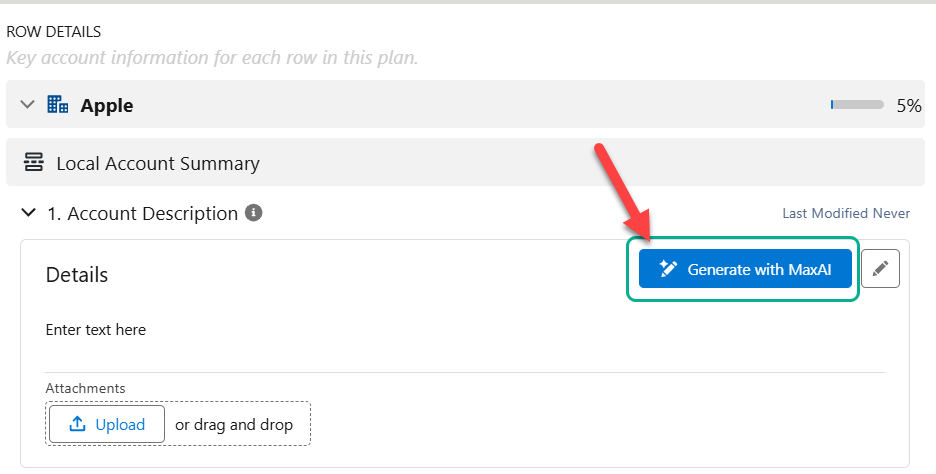
Note: This button is not necessarily displayed for every question, just the ones that your admin has deemed suitable for AI guidance.
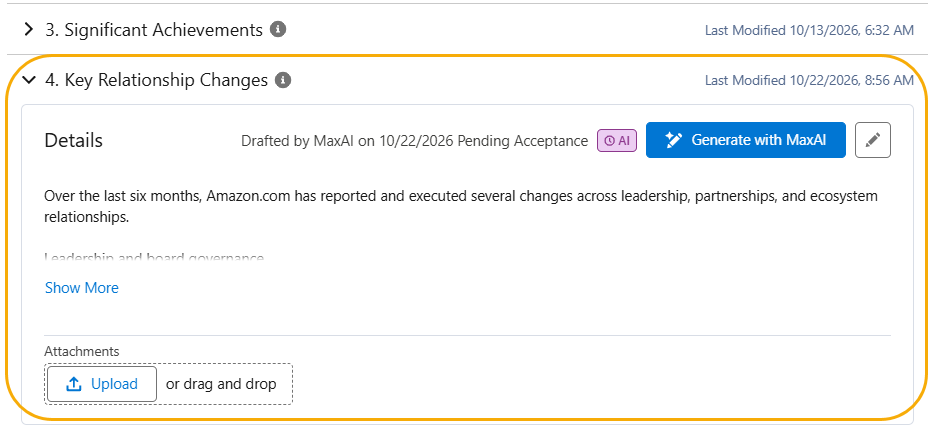
Following a few seconds of calculation, MaxAI saves its suggested answer to the question (as shown in the example below).
-
Review the answer, and accept or reject it as described in Reviewing and accepting MaxAI's answers.
Reviewing and accepting MaxAI's answers
Each answer that MaxAI generates is marked with an AI badge, so that you can see at a glance which answers still need your review:
-
 - the answer is pending acceptance. The label beside the badge reads 'Drafted by MaxAI on [date] Pending Acceptance'.
-
 - the answer has been accepted. The label beside the badge reads 'Drafted by MaxAI on [date], Accepted by [user name] on [date]'.
To review an answer that is pending acceptance, click its AI badge and do one of the following:
-
Click Accept to accept the answer as generated by MaxAI.
-
Click Reject to remove the answer. If the question had an answer before MaxAI generated a new one, that previous answer is restored.
Alternatively, edit the answer as required and save your changes. Editing an answer accepts it, so the badge changes to .