Configuring the AI Agnostic Connector
The AI Agnostic Connector lets Altify route Generate with MaxAI requests to a large language model (LLM) provider of your choosing — OpenAI, Anthropic, Perplexity, or your own proprietary solution — through an API endpoint, instead of the fixed, Altify-managed endpoint. A proprietary solution requires extra custom development to implement your specific API.
The connector applies to the Generate with MaxAI buttons in Account Details in account plans (as indicated below), Row Details in Account Manager plans, and account and opportunity insight maps. It does not apply to data generated from chat with an AI agent.
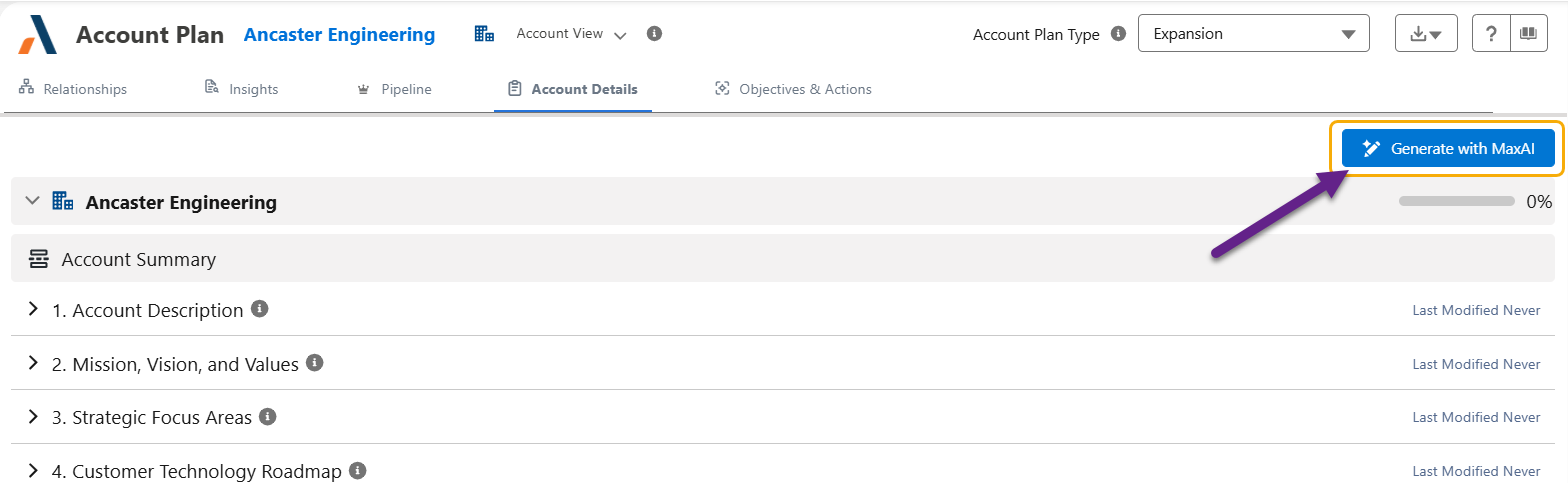
This guide covers connecting Altify to a provider, from creating the required Salesforce credentials through to verifying that the Generate with MaxAI buttons work end to end.
Prerequisites
- A Salesforce org with the Altify (ALTF) managed package v9.21 or later installed.
- An API key for the LLM provider you intend to use:
- OpenAI — platform.openai.com/api-keys
- Anthropic — console.anthropic.com/settings/keys
- Perplexity — api.perplexity.ai/generate_auth_token
Note
- You do not need to install the MaxAI package to enable the AI Agnostic Connector.
- To perform the following configuration, you require the Altify Administrator permission set.
Configuration steps
Complete the following steps in order:
- Step 1: Create the External Credential and Named Credential
- Step 2: Configure Your Permission Set
- Step 3: Configure the LLM Provider
- Step 4: Grant Permission to Use the Named Credential
- Step 5: Configure the Altify In-App MaxAI Settings
- Step 6: Verify the Connection
- Step 7: Enable the Generate with MaxAI Button