What's New
Note: Full release information is available in the Altify 9.17 Release Notes. For help with installing, localizing or upgrading to Altify 9.17, see PDF Installation and Upgrade Guides.
Described below are the key changes delivered with this release:
MaxAI
Altify MaxAI Revenue Execution Agent
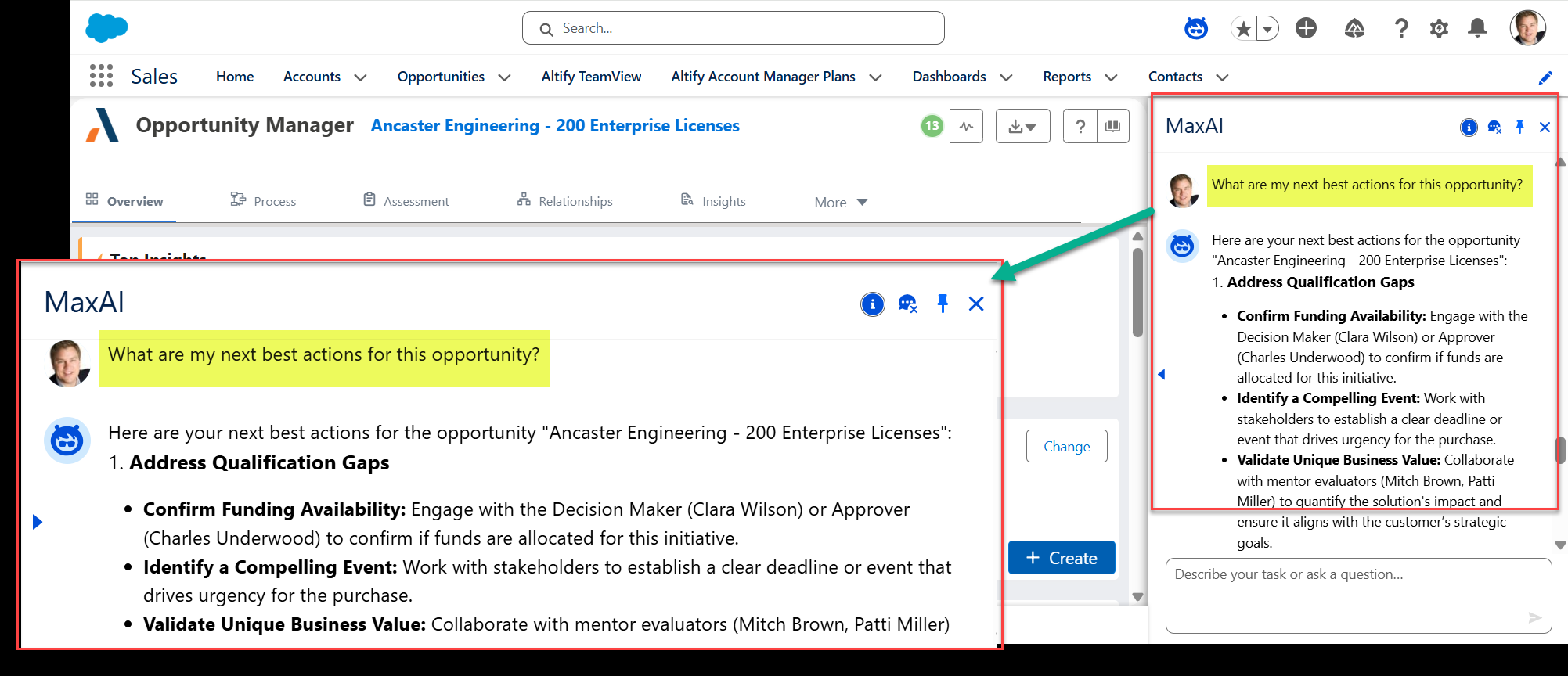
Access strategic opportunity coaching with the click of a button and a simple prompt.
With detailed and concise responses informed by real-time opportunity data and Altify methodology, the MaxAI Revenue Execution Agent concisely summarizes an opportunity, assessing risks and guiding next actions.
In the example shown below (What are my next best actions for this opportunity?), the MaxAI agent suggests next steps for the user to advance their deal.
For more information, see MaxAI Revenue Execution Agent: Prompt Library.
Opportunity-centric insight generation
MaxAI will now generate insights specific to the opportunity with the click of a button. (Previously, the insights that were uncovered all derived from account data).
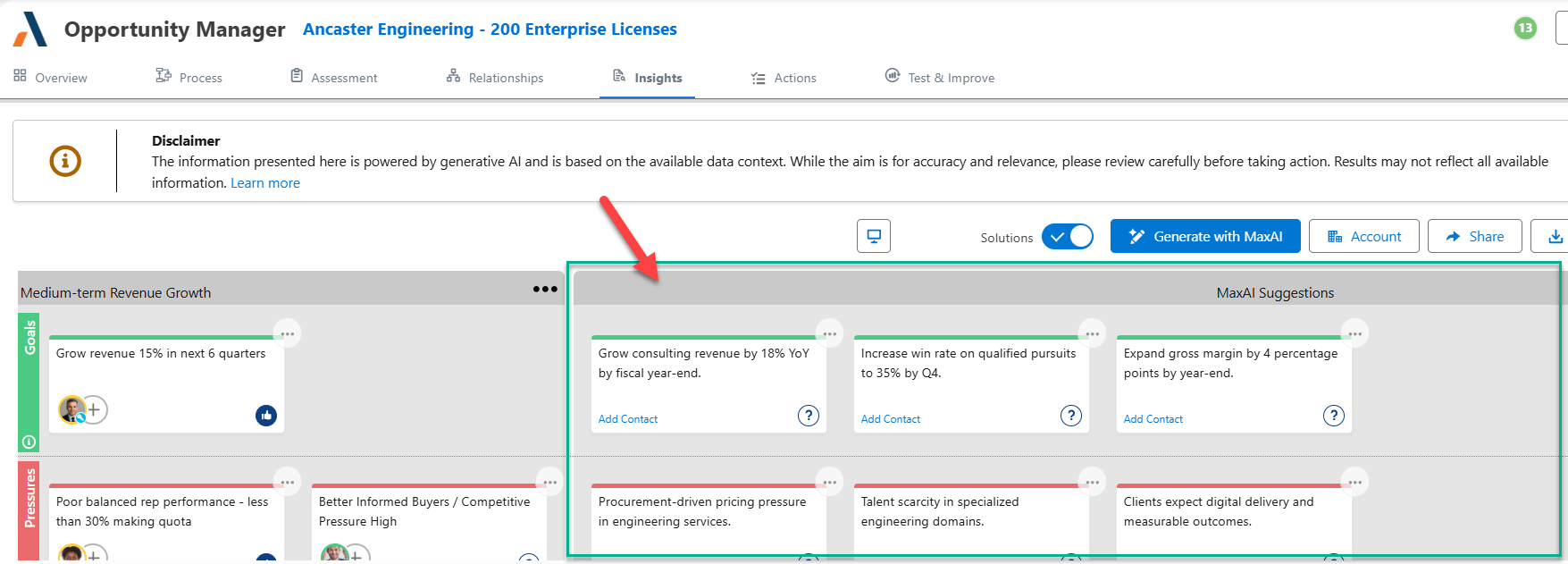
For more information, see Using MaxAI to Populate an Insight Map.
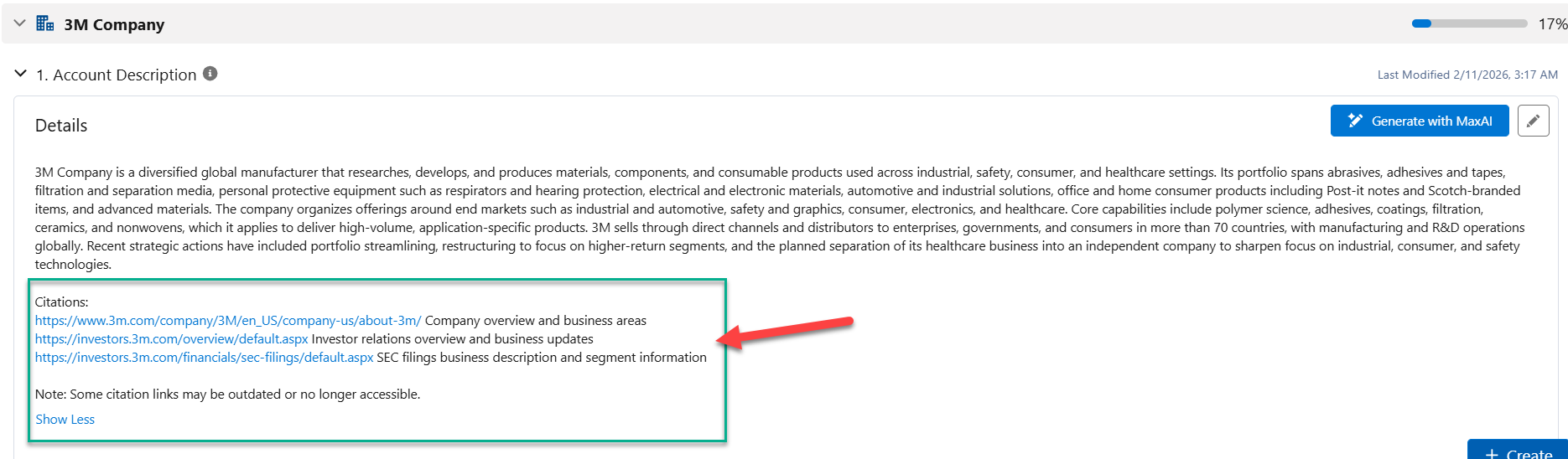
Clearly formatted citations
For MaxAI install and setup information, see Introduction to MaxAI.
Account Manager
Account Manager plan access for partner users
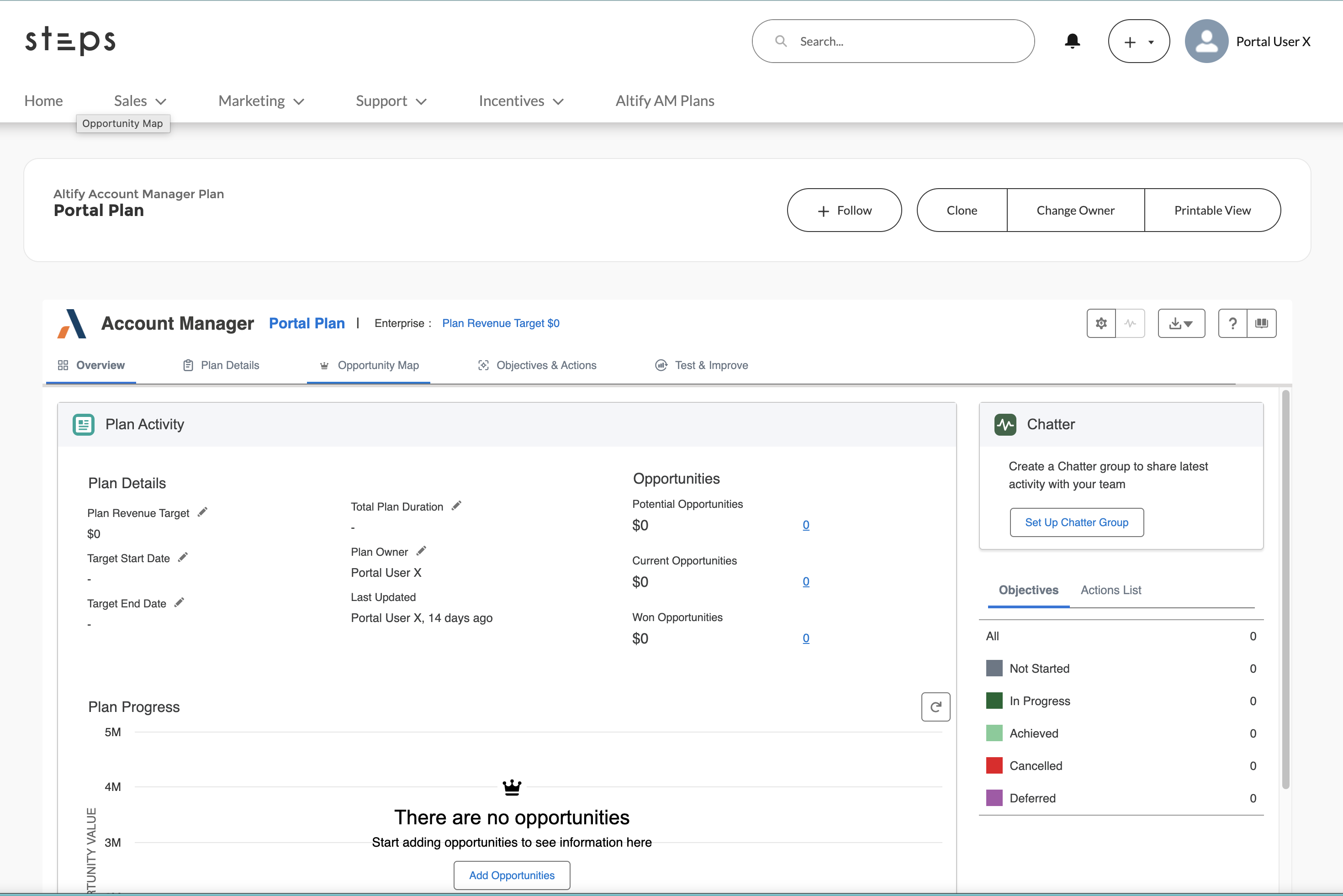
Following on from account plan access for partner users introduced in Altify Spring '25 (v9.14), a Salesforce portal site can now be configured to allow partner user access to Account Manager plans. Partner users can have read/write access as with account plans and can be added as AM plan team members.
Shown below is how an Account Manager plan can be accessed via a portal site.
For guidance on setting up this access, see Additional Steps for Partner User Access to Account Manager Plans.
Note: Providing access to account plans is a necessary step before implementing access to AM plans. So if you have not already done so, you need to first implement Account Manager Access for Partner Users.
Usability improvements
A number of small usability improvements are applied
Opportunity Manager
-
Where opportunity actions are listed, a new icon is displayed next to contacts who are on the opportunity relationship map. This helps with identifying gaps in the relationship map.
-
The following improvements improve the editing and reading experience of the Notes field on the Assessment tab:
-
The pencil icon is now adjacent to the Notes heading to clearly indicate that they are editable.
-
Where previously just one line of notes was displayed, it is now two.
-
Clicking anywhere in the Notes pane now opens the edit dialog, where previously a user needed to click on the pencil icon.
-
Relationship Map
-
Where key players are listed in Altify, they are now displayed in a hyperlink style so that is clear to users that they are clickable (to access the opportunity or account relationship map with the relevant contact information panel on display).
-
On the list view of a relationship map (for an account or opportunity), contact attributes are now listed in the order in which they are displayed on the contact information panel. This provides a continuous user experience across a relationship map's list and map views.
Sales Process Manager
-
Attachments uploaded to provide supporting information are now uniformly aligned to improve user experience
-
A more accurate label is applied to the graphic that measures the opportunity’s velocity: ‘Sales Cycle’ is relabeled ‘Deal Velocity’.
-
Save and Cancel buttons added to the Select Sales Process dialog allow the user to cancel their selection and retain their currently selected process.
-
The following improvements improve the editing and reading experience of the Notes field:
-
The pencil icon is now adjacent to the Notes heading to clearly indicate that they are editable.
-
Where previously just one line of notes was displayed, it is now two.
-
Clicking anywhere in the Notes pane now opens the edit dialog, where previously a user needed to click on the pencil icon.
-