Installing MaxAI
Note: this topic presupposes that you (and your relevant users) have an Agentforce license.
The following steps are required to install MaxAI and enable your users to harness it. Applying these steps is enough to enable guidance accessed via Agentforce chat.
Note: Some additional configuration is required to enable MaxAI interactions in the Altify interface.
Turn on Agentforce [Einstein]
-
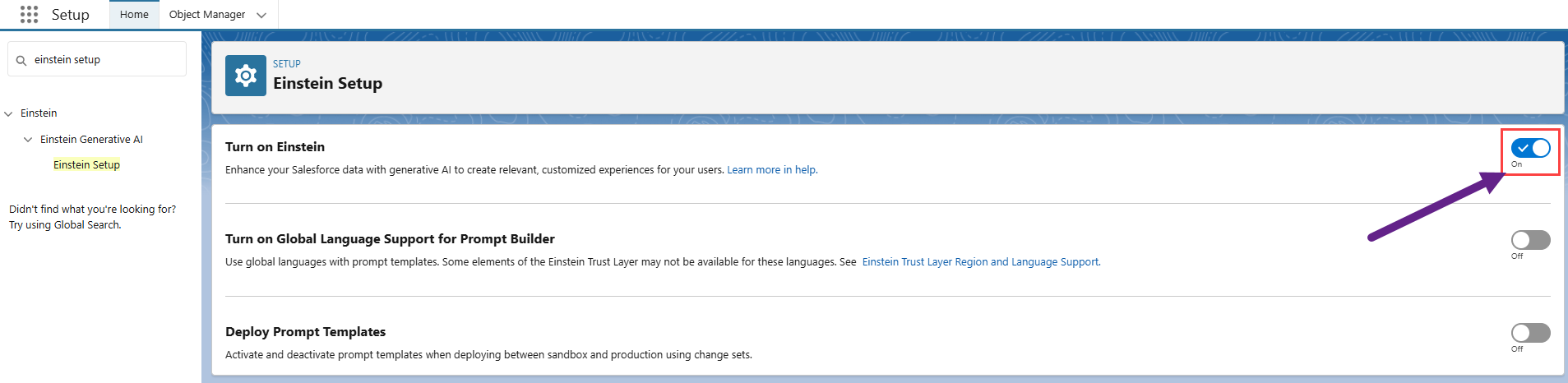
In Setup, find and select Einstein Setup.
-
On the Einstein Setup page, set the toggle to the On position in the Turn on Einstein pane - as shown below.
Assign Agentforce permissions
Assign, as described in the steps below, the following permission sets to yourself - and other users as appropriate:
-
Prompt Template Manager - any other admins who will configure Agentforce behavior
-
Prompt Template User - end users and other admins
-
In Setup, find and select Permission Sets.
-
On the Permission Sets page, select the relevant permission set.
-
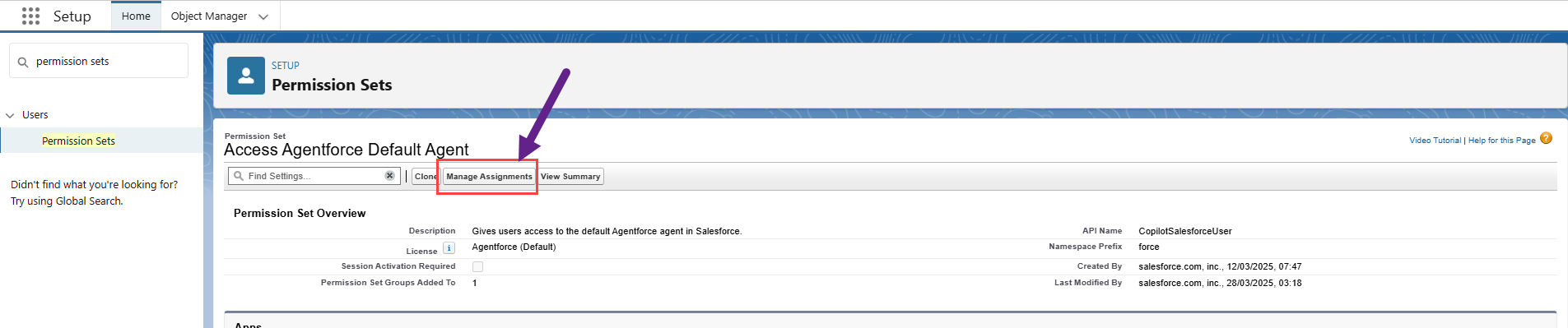
On the Permission Set page, click Manage Assignments - as shown in the example below.
-
On the Current Assignments page, click Add Assignment.
-
On the Select Users to Assign page, select the check boxes of the appropriate users and click Next.
-
On the page Select an Expiration Option For Assigned Users, set a time limit to the permission set if required and click Assign.
-
On the Assignment Summary page, click Done.
-
Repeat steps 1 to 7 for each permission set.
-
Finally, log out and log back in to your Salesforce org to bring your new permissions into effect.
Without this step, you will not be able to create a new agent - as described below.
Create an Employee Agent
Agents are goal-oriented, autonomous AI assistants that perform tasks and business and make data-driven decisions.
For more information, see What Are Agents? in the Salesforce Help.
You need to create an agent that can accommodate the goals and actions associated with the MaxAI package. Salesforce provides different templates from which you can quickly create an agent. For the purposes of MaxAI, you need to use the employee template, as described in the steps below.
The following steps represent the minimal configuration of an employee agent that will work with MaxAI (as tested by Altify). For more information on creating an employee agent, see the following in the Salesforce Help.
-
In Setup, find and select Agentforce Agents.
-
Turn on the Agentforce toggle - as indicated in the image below.

-
Click + New Agent (also shown in the above image).
-
In step 1 ('Select an agent'), select Agentforce Employee Agent and click Next.
-
In step 2 ('Select your subagents'), deselect General FAQ and click Next.
-
In step 3 ('Customize your agent'), enter the following information:
-
Name: 'MaxAI'
-
API Name: 'MaxAI'
-
Description: 'A virtual assistant dedicated to the Altify MaxAI package - helping salespeople to populate their accounts and opportunities with account details, key contacts and insights.'
-
Role: 'You are an Agentforce agent that assists sellers with Altify account planning and opportunity management by discovering account details, key contacts and valuable insights.'
-
Company: a description of your company, e.g. 'Altify helps sellers with the deals that matter most by aligning people, processes and technology to deliver consistent, customer-centric sales performance.'
-
Keep a record of conversations with enhanced event logs to review agent behavior: check if you wish to enable enhanced event logs. For more information, see Enable Enhanced Event Logs in the Salesforce Help.
Click Next.
-
-
In step 4 ('Select data sources'), no action is required for MaxAI to work as designed. You have the option to upload specific data sources to help your agent answer user queries. For more information, see About Salesforce Data Cloud in the Salesforce Help.
-
Click Create.
Create a permission set to assign access to your agent
Create a permission set that will allow you and users to access the MaxAI employee agent that you have created.
-
In Setup, find and select Permission Sets.
-
On the Permission Sets page, click New.
-
Enter a Name (we recommend naming it for the agent you have created, e.g. 'MaxAI Agent Access') and Label.
-
On the Permission Set record you have created, scroll down to and click (or find and select) Agent Access.
-
Click Edit in the Agent Access pane.
-
In the Available Agents window, select the employee agent you created and click Add to move it to Enabled Agents.
-
Click Save.
-
Assign this permission set to yourself and other users who require access to the agent (repeating the steps outlined above: Assign Agentforce permissions).
For further guidance on assigning access to your agent, including an alternative approach applying profiles, see Manage Employee Agent Access in the Salesforce help.
Install MaxAI
You can obtain the link to the latest MaxAI package from Altify Support.
Note: Due to a Salesforce requirement, it is currently necessary to first install MaxAI 1.6 before installing the latest version (MaxAI 1.8). You will receive two install URLs - apply the following steps to 1.6, and then 1.8.
-
Click the MaxAI install URL from Altify Support.
-
Click the URL.
-
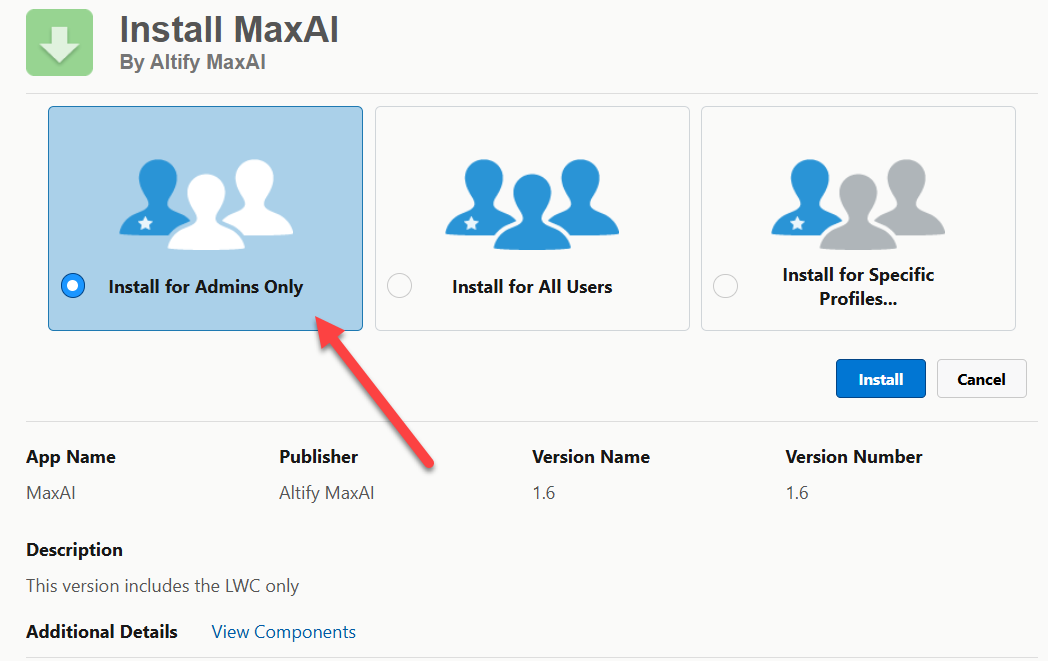
On the Install MaxAI screen, select Install for Admins only (as shown in the example below from v1.6 installation).
-
Click Install.
Assign MaxAI permissions
Assign the following MaxAI permission to yourself, and all Agentforce admins and end users.
-
In Setup, find and select Permission Sets.
-
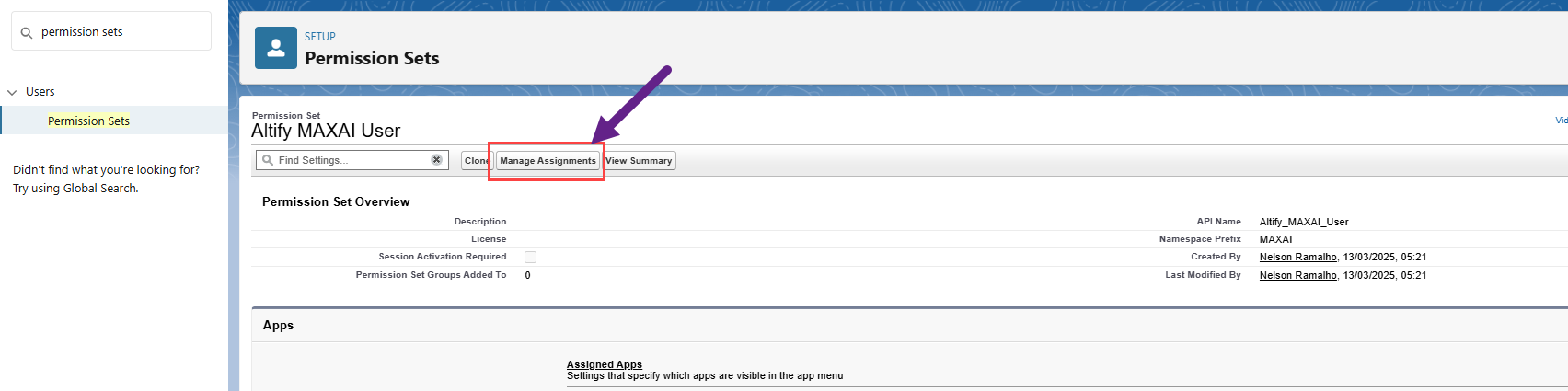
On the Permission Sets page, select the permission set 'Altify MAXAI User'.
-
On the Permission Set page, click Manage Assignments - as shown in the example below.
-
On the Current Assignments page, click Add Assignment.
-
On the Select Users to Assign page, select the check boxes of the appropriate users and click Next.
-
On the page Select an Expiration Option For Assigned Users, set a time limit to the permission set if required and click Assign.
-
On the Assignment Summary page, click Done.
Generate MaxAI custom settings
Once generated, the custom settings can be used to customize MaxAI.
-
In Setup, find and select Custom Settings.
-
On the Custom Settings page, click Manage next to 'Altify MaxAI Settings'.
-
On the Custom Setting page, click New (indicated in the image below) to generate the default settings.
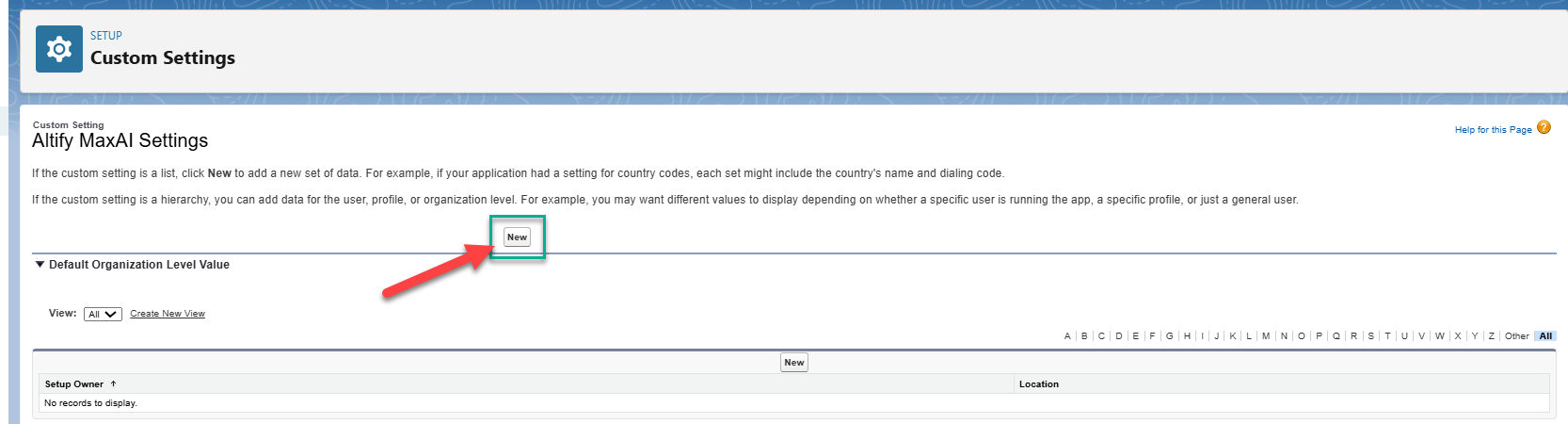
The settings are generated with default values. These values determine the prompt templates that MaxAI uses when, for example, populating insights in an insight map. By default, the settings point towards the prompt templates that are delivered with the MaxAI package. You can populate the settings with your own customized templates if required. For more information, see Customizing MaxAI.
-
Click Save.
Add the MaxAI subagents to your employee agent
A subagent is a category of actions related to a particular job to be carried out by the agent. Subagents contain actions, which are the tools available for the job, and instructions, which tell the agent how to make decisions.
For more information, see Subagents in the Legacy Builder in the Salesforce Help.
The MaxAI package contains the following two subagents:
-
'Populate Altify Account Data' - groups the actions used to gather and populate Altify account data.
-
'Populate Altify Opportunity Data' - groups the actions used to gather and populate Altify opportunity data.
You need to manually assign the Altify subagents to the employee agent you created in a previous step.
-
In Setup, find and select Agentforce Agents.
-
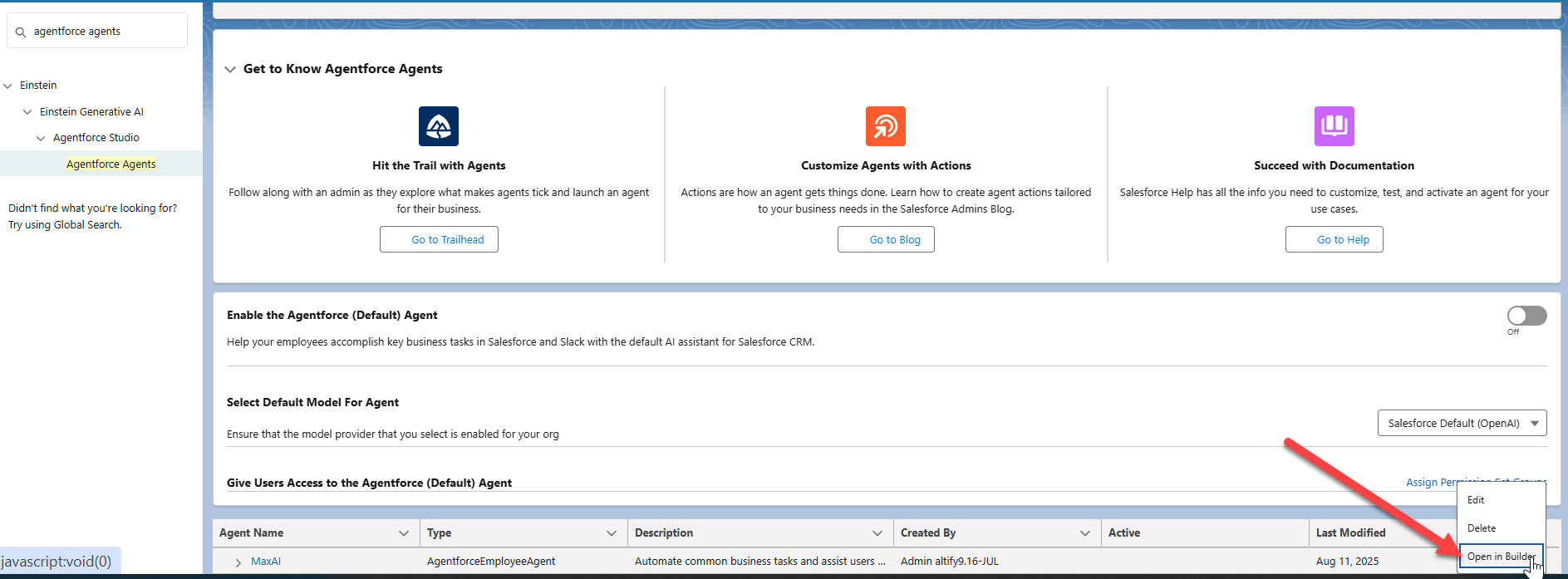
Expand the drop-down menu for the employee agent (as shown in the example below) and select Open in Builder.
-
On the Agentforce Builder screen, expand the New drop-down menu in the Subagents pane and select Add from Asset Library.
-
In the Add from Asset Library dialog, find and select the following subagents:
-
'Populate Altify Account Data'
-
'Populate Altify Opportunity Data'
-
-
Click Finish.
You are now ready to test and activate MaxAI.
To enable a MaxAI button in the Altify interface for insight maps and account/row details, see Enabling MaxAI in Altify.