Enabling MaxAI in Altify
In addition to accessing MaxAI via Agentforce chat (as previously described), you can also enable interactions in the Altify interface by taking the additional steps outlined in this topic.
This will allow your users to populate an insight map with the click of a button - as indicated below:
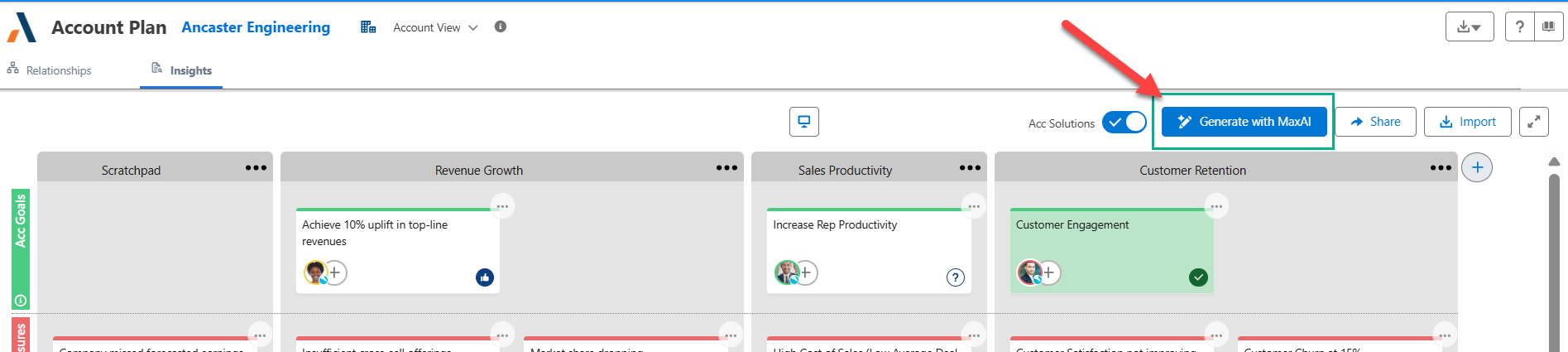
This will allow your users to do either of the following with the click of a button:
-
Populate an insight map - as indicated below.

-
Complete specific account details questions (as indicated below). When configuring this scenario, you can create an individualized prompt for each question - guiding MaxAI toward providing the answers that your users require.
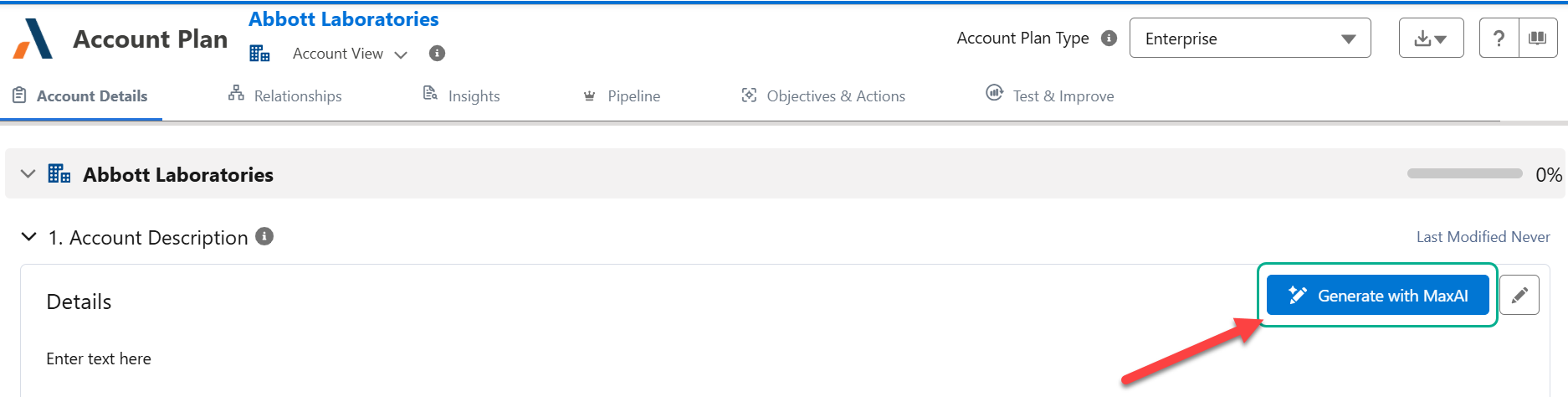
Switching on this functionality is all that's required to enable the MaxAI button in insight maps.
Creating prompts for account/row detail questions
The 'Generate with MaxAI' question is only displayed for questions where you have created a prompt. In this way, you can take a targeted approach, providing MaxAI assistance where it is of real benefit.
To create a prompt do the following:
Note: you will enter your prompts into a custom text field, 'Question_Prompt' (ALTF__Question_Prompt__c). This field belongs to the object Altify AM Account Question and is delivered as part of the MaxAI package. You must add the field to the page layout of the Altify AM Account Question before you can proceed with the steps below.
-
In the App Launcher, select Altify Account Manager Admin.
-
Select the tab Altify AM Account Questions.
-
Select Edit for a question where you wish to make customized MaxAI guidance available.
-
In the Question_Prompt field, enter a prompt that MaxAI will use in suggesting an answer to the user.
For example, for the question 'Significant Achievements' (EAQ_03), you might enter the following prompt:
'List and outline significant achievements using three headings: 1) Sales 2) New markets 3) Sustainability.'
Note: if you do not have a specific prompt in mind, and just want to make the 'Generate with MaxAI' button available to users, you can just copy the content from the Help field to the Question_Prompt field.
-
Click Save.
Tip: Altify recommends that you add the field Question_Prompt to your Altify AM Account Questions list view so that you have an overview of the prompts that have been added.

If your organization does not wish to make MaxAI guidance available in the Altify interface, and are happy to stick with guidance provided via the Agentforce chat panel, it is still worth creating prompts for questions where specific guidance is required. This is because Agentforce will look to the Question_Prompt field if content is provided.
Switching on MaxAI guidance in the Altify interface
In order enable the MaxAI button for insight maps
- In Setup, go to Custom Settings.
- Click Manage beside Altify In-App MaxAI Settings.
- Click Edit.
-
For the setting Enable Generate MaxAI Button, enter 'All'.
If this setting is cleared, the MaxAI button is not displayed in insight maps or account/row details.
- Click Save.
Note: The setting Account Details MaxAI Prompt Field identifies the field used to create individual prompts for account questions. By default, it is set to the field 'Question_Prompt' (ALTF__Question_Prompt__c) referred to in Creating prompts for account/row detail questions.