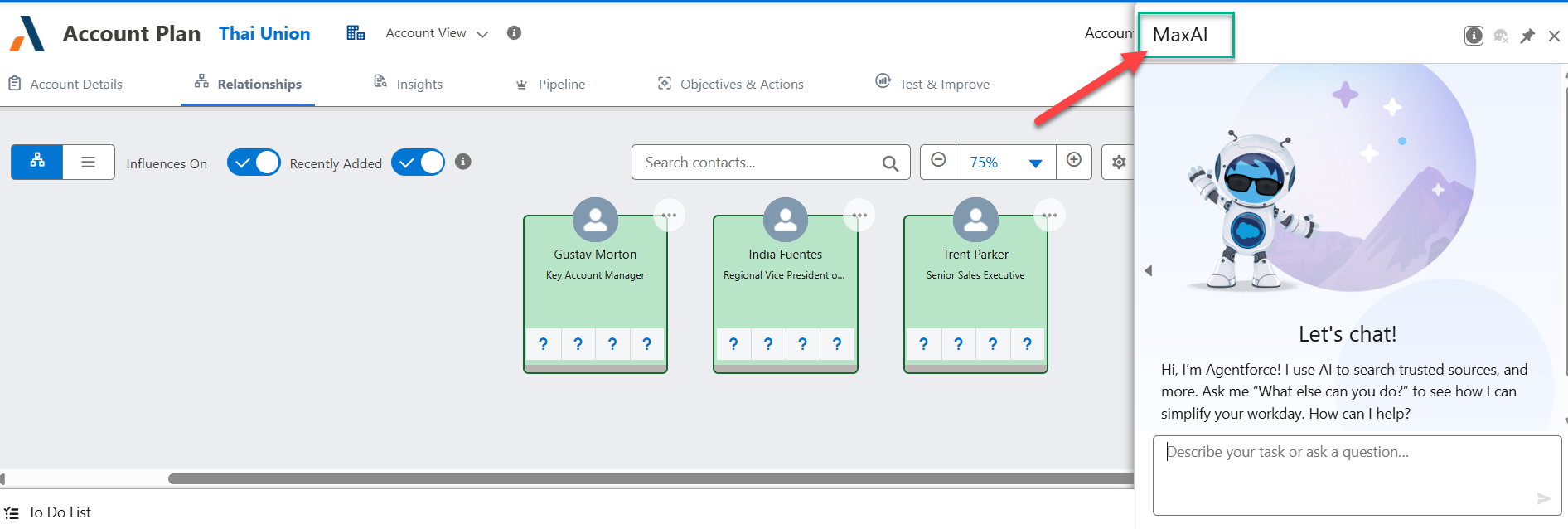
Testing and Activating MaxAI
Once you have added your subagents, you are free to start testing MaxAI's responses in the Agent Builder.
As a reminder, you can access the Agent Builder of your employee agent via the drop-down on the Agentforce Agents page (click Open in Builder as shown in the example below).
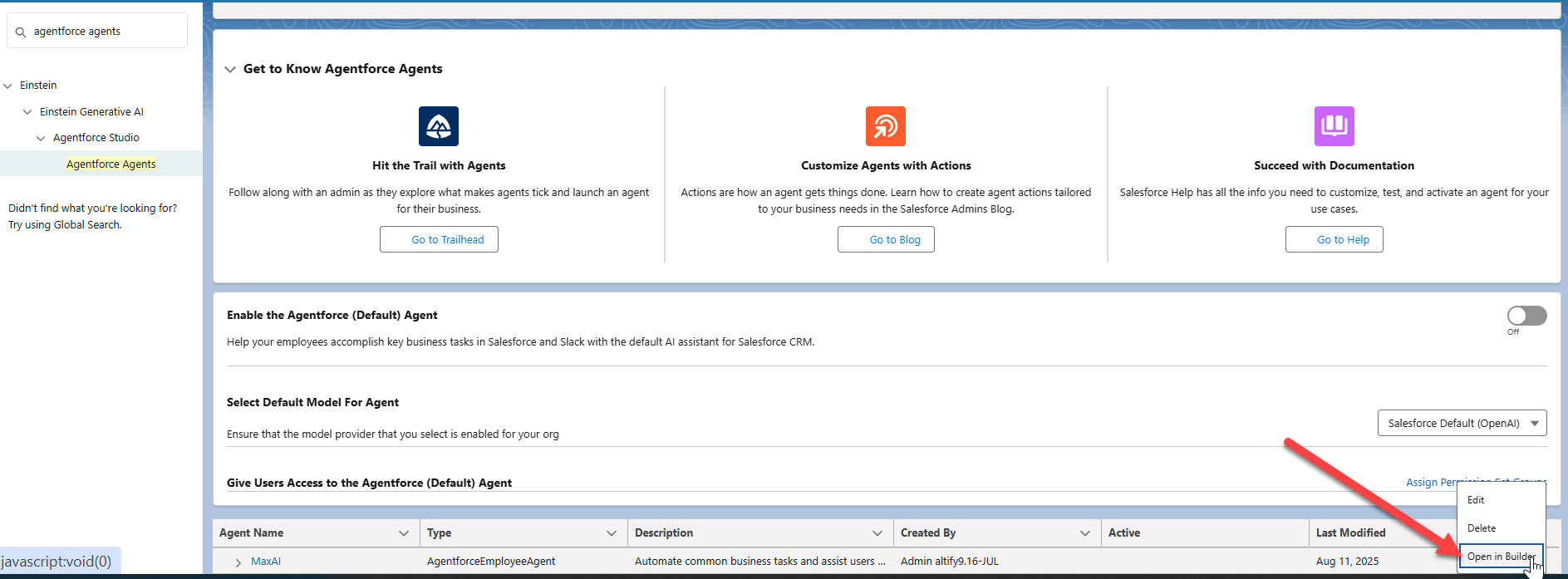
On the Agent Builder screen, you can test each of the following MaxAI use cases by entering an appropriate query (such as the examples provided below) in the Conversation Preview panel.
| Use Case | Sample Query |
|---|---|
| Retrieving account/row details | 'Help me in answer the following Altify Account Plan questions: Account description, Significant Achievements and Business Description for the [account name] account' |
| Identifying missing account contacts | Identify missing Altify relationship map contacts for the [account name] account |
| Identifying missing opportunity contacts | Identify missing Altify relationship map contacts for the [opportunity name] opportunity |
| Populating an account insight map | Help me populate the Altify insight map for the [account name] account |
| Populating an opportunity insight map | Help me populate the Altify insight map for the [opportunity name] opportunity |
In the example below, assistance is sought with identifying contacts missing from the relationship map for the account Ancaster Engineering.

You can then test adding the data that Agentforce has unearthed for the relevant insight map
-
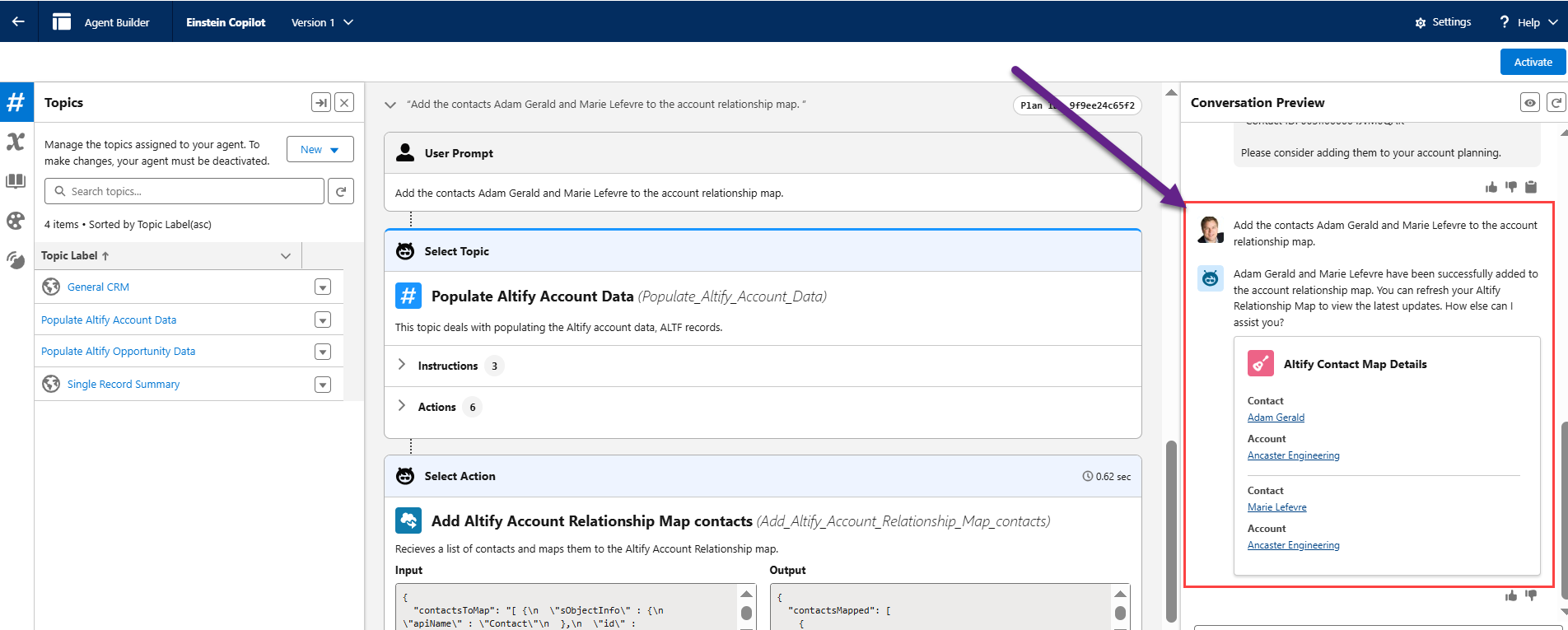
'Add the contacts [contact name] and [contact name] to the account relationship map.'
-
'Add these insights to the opportunity insight map'.
-
'Add these answers to the account plan'.
In the example shown below, the addition of contacts to a relationship map is tested and accomplished.
If you wish to tweak MaxAI's responses or behavior, you can explore your options with MaxAI customization.
If you are happy with the responses, click Activate to make your MaxAI agent available to your Altify end users - as shown in the example below: