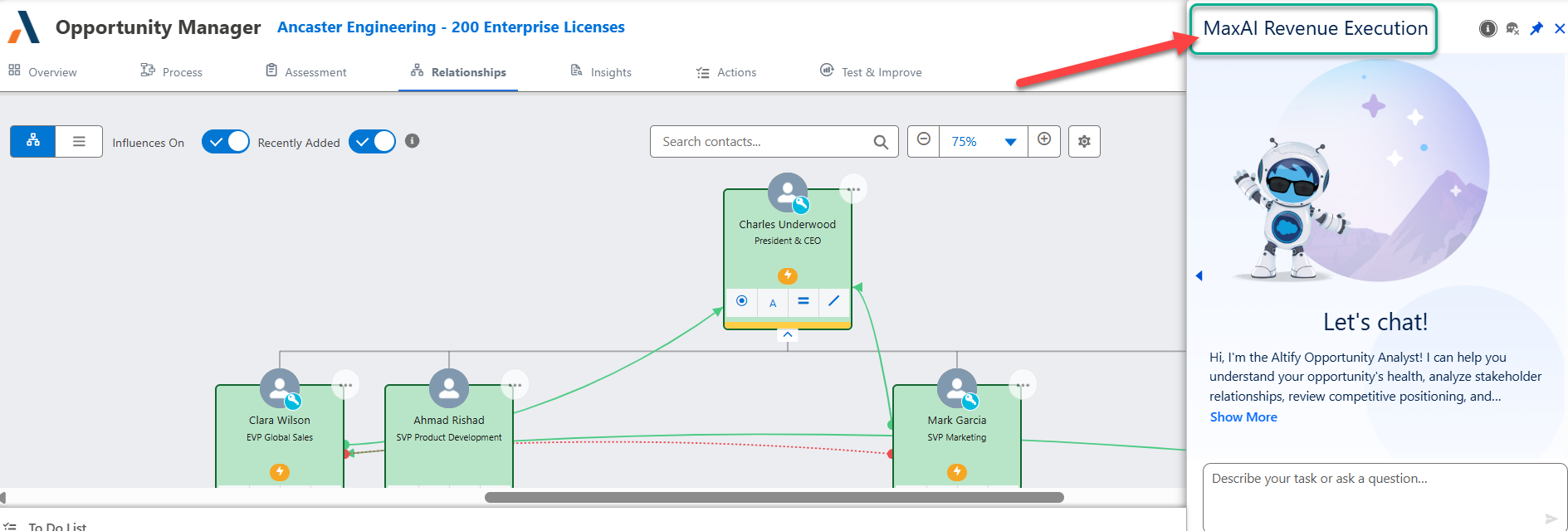
Testing and Activating the MaxAI Agent
Once you have added your subagents, you are free to start testing MaxAI's responses in the Agent Builder.
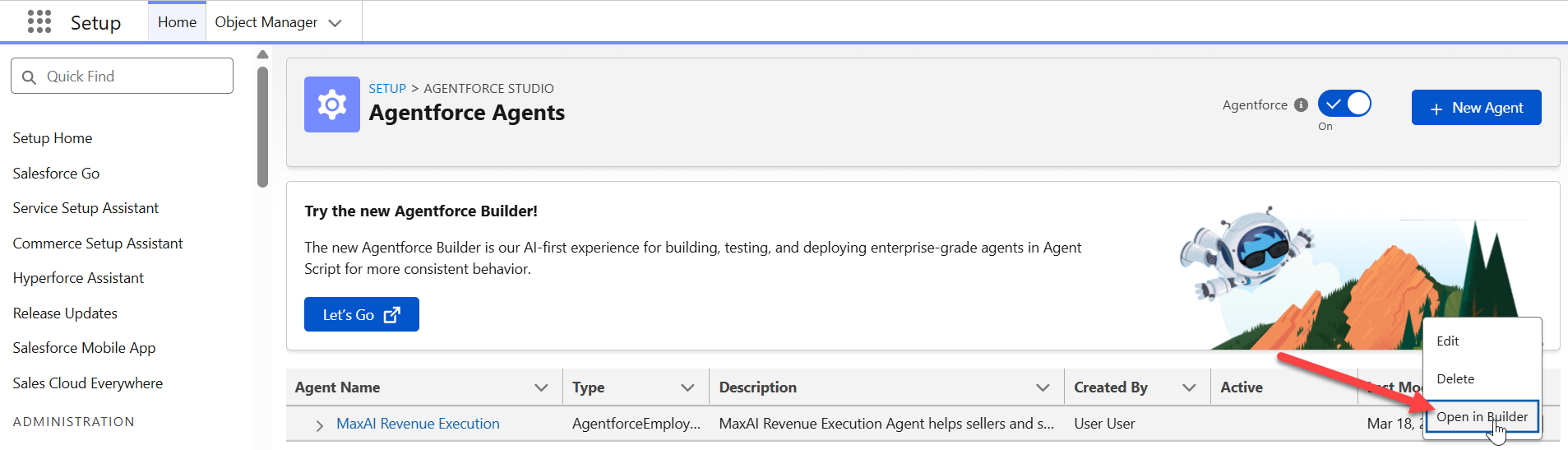
As a reminder, you can access the Agent Builder of your employee agent via the drop-down on the Agentforce Agents page (click Open in Builder as shown in the example below).
On the Agent Builder screen, you can various use cases by entering an appropriate query (such as the examples provided below) in the Conversation Preview panel.
| Use Case | Sample Query |
|---|---|
| Seeking next best actions [as a seller] | 'What should I do next to move the deal [opportunity name] forward?' |
| Identifying missing opportunity contacts [as a seller] | Are we missing any important contacts for the opportunity[opportunity name]? |
| Preparing for a test & improve [as a sales leader] | With regard to the opportunity [opportunity name], what risks or gaps should I address before presenting this deal to leadership? |
| Seeking coaching recommendations [as a sales leader] | How should I coach the seller on their opportunity [opportunity name]? |
For more use cases and queries supported by the MaxAI Revenue Execution agent, see the MaxAI Revenue Execution Agent: Prompt Library.
In the example below, assistance is sought with identifying next actions for an opportunity with the account Ancaster Engineering.
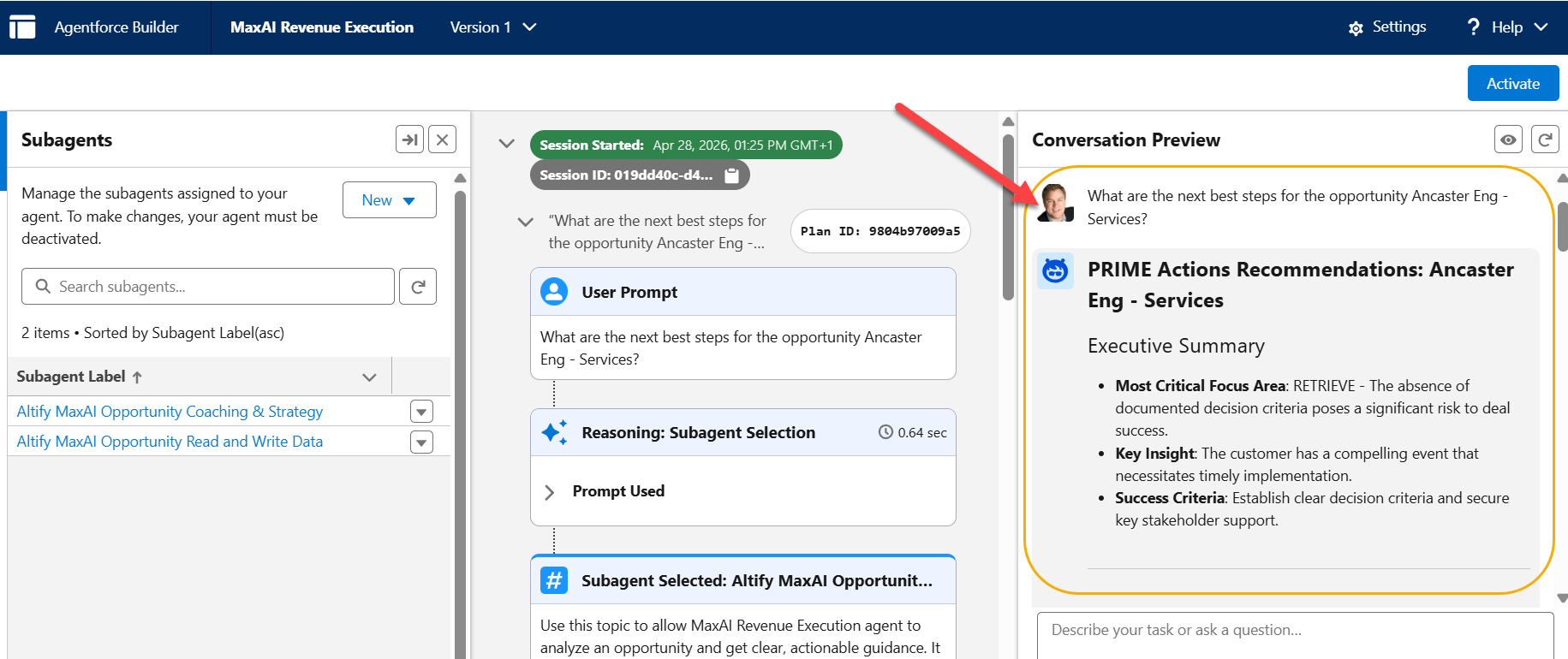
The Conversation Preview displays the test query and the agent's response, while the middle pane details the subagents, actions, instructions, and reasoning your agent used to answer your query.
If you wish to tweak the agent's responses or behavior, you can explore your options with MaxAI customization.
For more in-depth guidance on agent testing, including AI-assisted batch testing, visit Test Your Agent in the Salesforce Help.
If you are happy with the responses, click Activate to make your MaxAI Revenue Execution agent available to your Altify end users - as shown in the example below: