Monitoring MaxAI MCP Usage
See who is using MaxAI MCP, which tools they use most, and where your AI provider tokens are going.
Every time someone uses a MaxAI MCP tool, the call is logged in your org. The Altify MCP Connector package includes ready-made Salesforce reports built on that log, so you can track adoption and spend without building anything yourself.
Before you begin
- The reports are included in version 1.3 or later of the Altify MCP Connector package.
- To run the reports, users need the Run Reports permission and either the Altify Remote MCP User or the Altify Remote MCP Admin permission set.
The AI usage reports
The package installs three reports in the Altify MCP Usage report folder. Each report covers the last 30 days and includes all users.
- AI Feature Usage by User shows how often each user invoked each MaxAI MCP tool. It is grouped by user, then by tool, with the heaviest users first.
- AI Feature Usage by Feature shows how often each tool was invoked across all users. It is grouped by tool, with the most-used tool first.
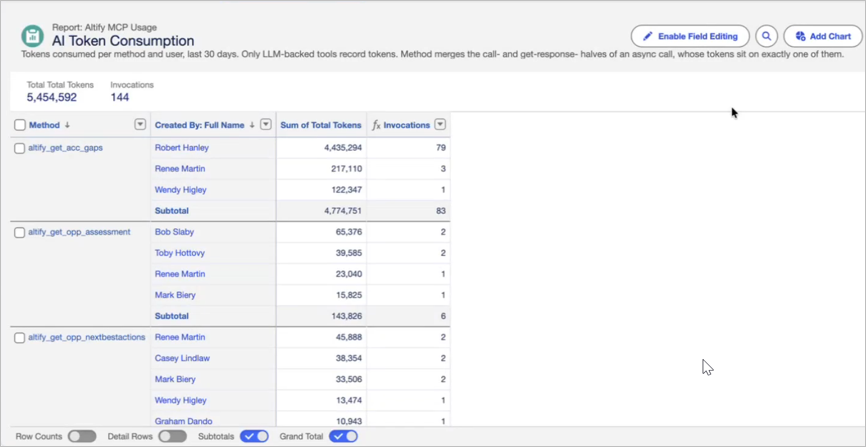
- AI Token Consumption shows LLM tokens consumed per tool and per user. It is grouped by tool, then by user, with the highest token totals first. It includes only calls that used tokens.
Why invocation counts differ between reports
The two feature usage reports count each use of a tool once. Long-running tools log two entries, one when the request starts and one when the result is returned, and these reports count only the first. They also leave out the individual LLM calls made within a tool.
The AI Token Consumption report keeps both entries of a long-running tool, because its tokens can be recorded on either one. Its invocation count for a tool can therefore be higher than in the other reports. Use its token totals rather than its invocation counts.
Sharing the reports
The Altify MCP Usage folder installs unshared, so only administrators can see it until you share it. Share it with whoever needs visibility of AI usage, such as sales operations or leadership. For instructions, see Share a Lightning Report or Dashboard Folder in Salesforce Help.
Customizing the reports
You can edit the packaged reports directly. Package upgrades don't change them, so your edits are kept. To keep the original versions as well, use Save As to save your copy in a folder of your own. For instructions, see Save Your Report in Salesforce Help.
For example, change the Created Date filter to cover a longer period, add a filter on Created By or Method to focus on one person or tool, or group by Server to see usage by MCP server.
You can also build a new report from the Altify MCP Usage report type. For instructions, see Build a Report in Lightning Experience in Salesforce Help. When you create the report, select All Altify MCP Logs to include every user's activity. Salesforce selects My Altify MCP Logs by default.
The report type includes these fields:
| Field | Description |
|---|---|
| Method | The tool that was used. The two entries of a long-running tool are shown under the same name. |
| Tool | The tool name as it was logged, including the prefix that marks the start or result entry of a long-running tool. |
| Server | The MCP server that handled the call: Analysis, Retrieve, Salesforce, or Write. |
| Created By / Created Date | Who used the tool, and when. |
| Total Tokens | Tokens consumed by the call. |
| Input Tokens / Output Tokens | Tokens sent to your AI provider and tokens returned by it. AI providers usually price these differently, so reporting on them separately gives a more accurate view of cost. |
| MCP Name | The technical server and tool identifier. |
Input Tokens, Output Tokens, and MCP Name aren't shown by default.
About the data
- Historical data is included. Usage is logged from the time the Altify MCP Connector package is installed. The packaged reports show the last 30 days, so to see earlier usage, change a report's date filter. Records are kept until the log purge job deletes them. For more information, see Installing and Setting Up the Altify MCP Package.
- Tokens come from the Analysis server only. Only Altify Analysis MCP tools call your AI provider, so only they record tokens. If your org doesn't connect the Analysis server, the AI Token Consumption report has no data. Tokens used by the AI assistant itself, such as ChatGPT or Claude, aren't captured.
- Your users' prompts aren't stored. The log records which tools were called, by whom, when, and the tokens used. Altify never receives the text users type into their AI assistant. Enable Extended Logging is off by default. If you turn it on, the values passed to each tool, the tools' responses, and the prompts Altify's analysis tools send to your LLM are also stored. Some error details for failed requests are stored even when extended logging is off. All of this is held in a restricted object that can be read only by users with the Altify Remote MCP Admin permission set and by Salesforce administrators with the View All Data permission.
Asking about usage in your AI assistant
Users can also ask their AI assistant about MaxAI MCP usage directly, for example “Which AI features are most popular this month?” The assistant answers using the altify_read_ai_usage tool on the Altify Retrieve MCP server, which reads the same usage data as the reports. Any user with MaxAI MCP access can use the tool, and it reports usage for everyone in the org, not only the user asking. Questions can cover up to 180 days. Token figures are totals, so for the input and output split, use the reports.
For a full list of tools, see Altify MCP Server and Tool Descriptions.