Installing and Setting Up the Altify MCP Package
Setting up MaxAI (via MCP Servers) in your org starts with installing and configuring the Altify MCP package, which involves the following steps:
Install the package
To install the Altify MCP package in your production or sandbox Salesforce org, do the following:
-
Click on the installation link provided by Altify and log in to the relevant org.
-
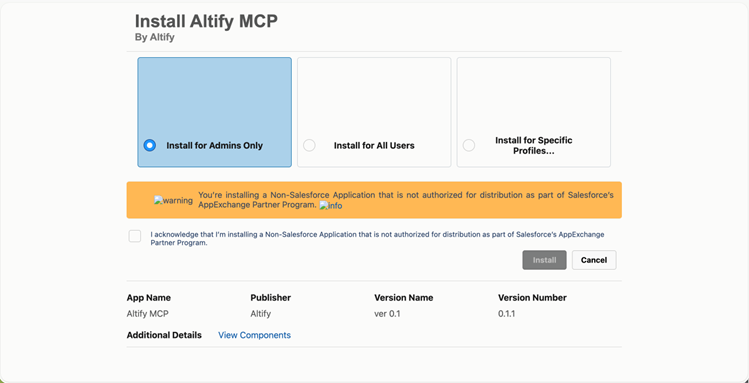
On the install page (shown below), select Install for Admins only and the check box to acknowledge that this is a Non-Salesforce application.
-
Click Install.
Once the installation completes, you will see the confirmation screen showing 'Installation Complete!' with the package details.
Assign MCP permission sets to your admins and users
After installing the package, you need to assign the appropriate permission sets to your users. Two permission sets are included:
|
Permission Set |
Assign To |
|---|---|
|
Altify Remote MCP Admin |
Administrators who will manage MCP configuration, usage limits, and user access. |
|
Altify Remote MCP User |
End users who will interact with the Altify MCP tools through AI platforms. |
To assign the permission sets, do the following:
-
In Setup, find and select Permission Sets.
-
On the Permission Sets page, select one of the MCP permission sets listed above.
-
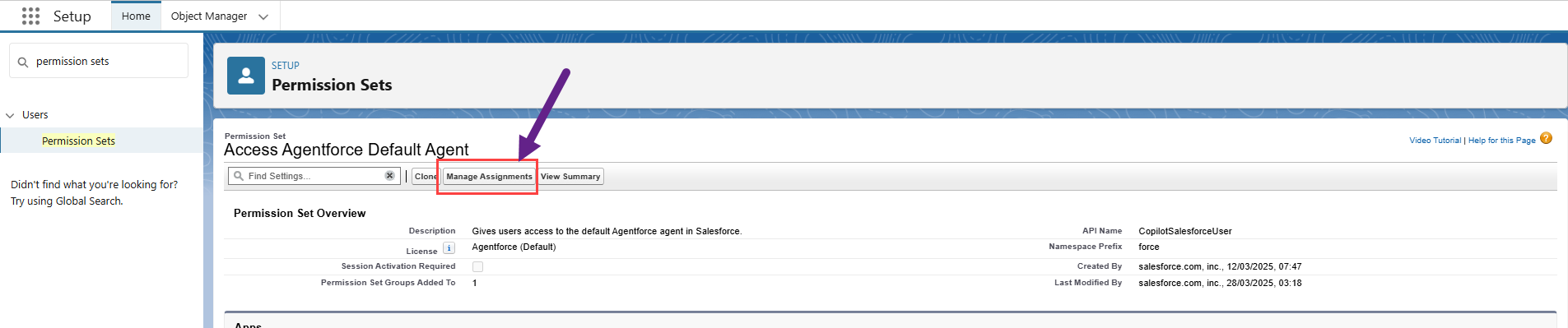
On the Permission Set page, click Manage Assignments - as shown in the example below.
-
On the Current Assignments page, click Add Assignment.
-
On the Select Users to Assign page, select the check boxes of the appropriate users and click Next.
Note: A user who is both an administrator and an end user should be assigned both the Altify Remote MCP Admin and Altify Remote MCP User permission sets.
-
On the page Select an Expiration Option For Assigned Users, set a time limit to the permission set if required and click Assign.
-
On the Assignment Summary page, click Done.
-
Repeat steps 1 to 7 for each permission set.
Next, you need to configure the settings of the LLM that will be used by the MCP servers.
Configure your MCP Servers
The Altify MCP Configuration record stores the LLM provider settings used by the MCP servers. You need to create at least one configuration record.
-
In the Salesforce App Launcher, find and select Altify MCP Configurations.
-
On the Altify MCP Configurations page, click New.
-
On the New Altify MCP Configuration dialog, complete the fields as follows:
-
Configuration Name: Enter a name for this configuration (e.g. 'System')
-
LLM Type: The following LLM providers are currently supported. Enter the relevant value from the LLM Type column.
LLM Type
Model Information
Service
OpenAI
OpenAI platform API
Anthropic
Anthropic API
-
Model: Enter the API model ID (e.g. 'gpt-5-mini'). Click the relevant link in the table above for further information.
-
User: Optionally assign this configuration to a specific user. If set, this configuration takes priority over the org-wide default for that user. Leave blank to create an org-wide configuration.
This field is useful when different users need different LLM providers, models, or API keys.
-
API Key: Your API key for the chosen provider.
Note: The API Key is stored securely within Salesforce. The MCP servers use these credentials to make LLM calls on behalf of users. Keep your API key confidential and rotate it periodically.
-
Customization: An optional JSON field for advanced settings such as temperature and token limits. See Advanced customization below.
-
-
Click Save.
Advanced customization
The Customization field accepts a JSON string for fine-tuning LLM behavior. This field is optional — sensible defaults are used when it is left blank.
The following options apply to all AI providers:
|
Option |
Description |
|---|---|
|
temperature |
Controls response randomness. Lower values (e.g., 0.1) produce more focused, deterministic responses. Higher values (e.g., 0.8) produce more creative, varied responses. Default: 0.1. Important: For OpenAI GPT-5 series models, set temperature to 1 (OpenAI recommendation). |
|
maxTokens |
Maximum number of tokens the LLM can generate in a single response. Default: 2000 |
An example customization string:
{"temperature": 0.1, "maxTokens": 2000}An example for OpenAI GPT-5 series:
{"temperature": 1, "maxTokens": 2000}Note: If you are using the direct API of OpenAI or Anthropic, no additional fields are required in the Customization JSON — only the LLM Type, Model, and API Key fields need to be set.
Next, you need to confirm the MCP server usage limits for your users.
Set usage limits and log retention
The Altify MCP package includes a custom setting called Altify MCP Usage Limits that controls token usage limits and logging behavior. You should review and update these settings as needed.
-
In Setup, go to Custom Settings.
-
Click Manage beside Altify MCP Usage Limits.
-
Click Edit for the 'Default' record to update the usage limit settings:
-
Enable Extended Logging: Standard logging always records which MCP servers and tools are invoked along with the associated token usage. If this setting is enabled, extended logging additionally captures the content of questions put to the MCP servers and their responses. This is for troubleshooting and audit purposes. Enable extended logging only when needed, as it increases storage usage.
-
Max Tokens Per Day: The maximum number of tokens that can be consumed per day across all MCP server calls (e.g. 1,000,000).
-
Log Retention Days: The number of days log records are kept when the log purge job runs (e.g. 90). A blank value, or any value below 1, is treated as 90. Changes take effect the next time the job runs. See Schedule the log purge job.
-
-
Click Save.
Altify MCP Server token usage
The following is how tokens are consumed by the servers:
-
Token-tracked tools: Only tools that make LLM calls (such as TAS assessment analysis, vulnerability analysis, strategic recommendations, and other analytical tools) consume tokens and count towards the daily limit.
-
Non-LLM tools: Tools that query or write Salesforce data directly (such as opportunity queries, data retrieval, and write operations) do not consume LLM tokens and are not subject to the daily token limit.
The Max Tokens Per Day limit is enforced on a per-day basis and resets daily. When the limit is reached, LLM-based tools will return an error until the next day. Non-LLM tools continue to work normally regardless of token usage.
Schedule the log purge job
The Altify MCP package logs every tool call in your org. These records are the data behind the AI usage reports and the altify_read_ai_usage tool. For more information, see Monitoring MaxAI MCP Usage.
The Altify MCP package doesn't delete log records automatically. To remove records older than the Log Retention Days setting, schedule the AltifyMCPLogPurgeBatch Apex class. In your org, it appears as ALTMCP.AltifyMCPLogPurgeBatch. For instructions, see Schedule Apex in Salesforce Help.
Note: The user who schedules the job must have the Altify Remote MCP Admin permission set. Otherwise, the job fails each time it runs and nothing is deleted.
When the job runs, it permanently deletes the log records. Any extended logging detail for those records is deleted at the same time. That detail stays in the Recycle Bin until Salesforce clears it, after 15 days.
Next, you need to create an ECA (External Client App) to securely integrate Altify's MCP servers with your AI assistant.