This topic explains how to do the following:
Note: You are not confined to the current stage when answering questions. However, the opportunity will not progress to the next stage until all necessary conditions are met.
Selecting an answer
To answer a qualifying question, you can select an option in the drop-down menu (see 'A' in the image below).
Alternatively, you can repeatedly click the relevant answer icon at the top of the section to toggle through the available answers (see 'B' in the image below).
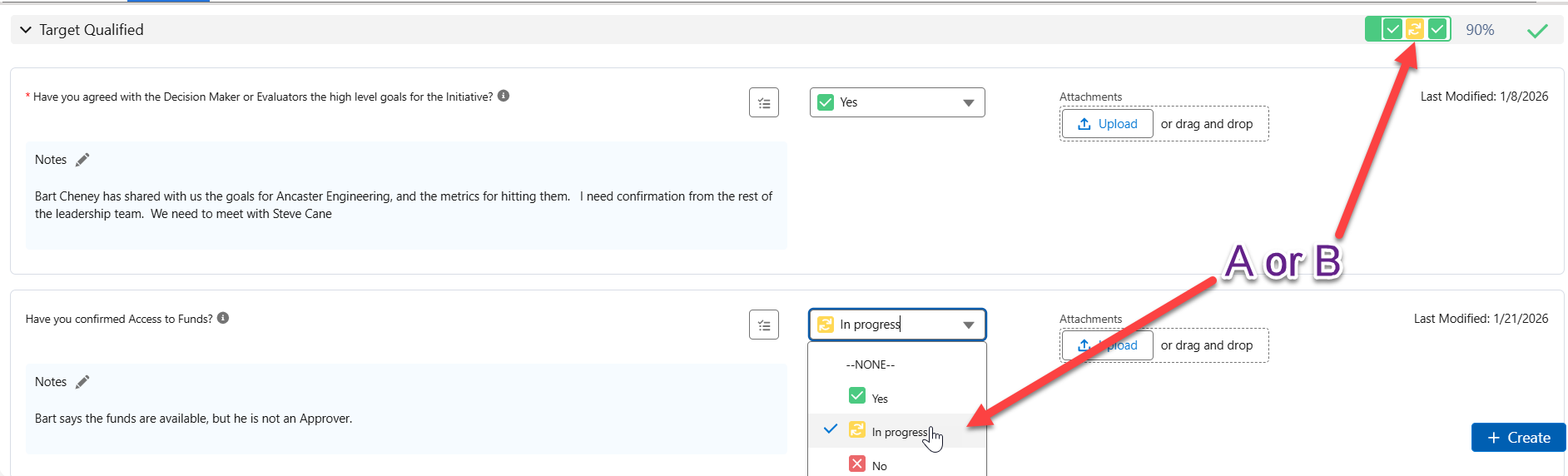
You can change your answers (e.g. from 'In Progress' to 'Yes').
Answering a question or changing your answer automatically updates the calculations for Stage Progress, Closure Probability, Close Date, and Pipeline Stage.
Important questions are marked with a red asterisk (as highlighted in the example below).

The opportunity can't progress to the next stage until all such questions are answered with a positive response (i.e. 'Yes').
AI Assistance: You can access and answer qualifying questions via your AI assistant. Try the following prompts:
-
'Show me the qualifiers for this opportunity and tell me which ones are incomplete.'
-
'Which qualifiers are marked as Essential and not yet answered?'
-
'Mark the ‘Budget confirmed’ qualifier as Yes for this opportunity.'
-
'We’ve completed the business case review — set that qualifier to Yes.'
For more prompt suggestions, see MaxAI Prompt Library for Sales Process Manager .
Accessing helpful resources
If you need clarification on what is required, click the information icon  to get more details (as indicated in the example below).

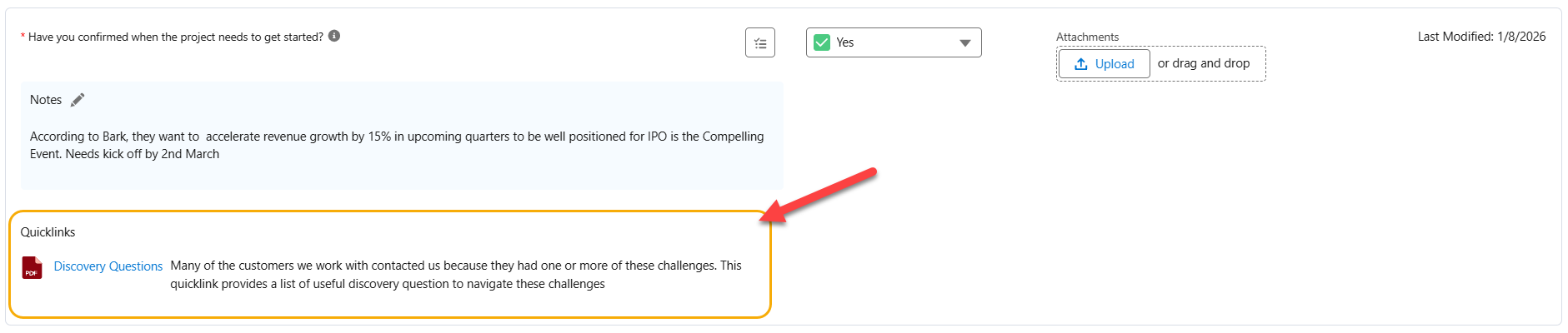
In addition, the qualifier may include one or more quicklinks. These are helpful resources configured by an administrator. Click a quicklink item to access the resource.
Providing supporting information
Click anywhere in the Notes field ('A' indicated in the image below) to include (or edit) additional notes wherever this is appropriate.
You can also click Upload or drag and drop a document ('B' in the image below) to add file attachments.

Adding Actions
Click the action button  (indicated below) to create an

The opportunity progresses through the sales process as you answer questions. For more on this, see Understanding your Progress.