Exporting to Powerpoint

You can export the contents of an Account Manager planAltify opportunityaccount plan to a PowerPoint (.pptx) file. This provides you with the core material to prepare a presentation on the Account Manager planaccount planopportunity.

The export includes a visual representation of the relationship map, as shown in the example below.

By default, a maximum of 35 contacts are displayed (15 horizontal x 7 vertical). This is the maximum recommended by Altify but those limits can be updated by your administrator. If your map exceeds the specified limits, only tabular relationship map data will be displayed and no image is generated in the PowerPoint file. (You are notified if your map exceeds the contact limits).

Tip: You can apply relationship map filters so that the number of contacts displayed is within the specified limits.

To generate the PowerPoint file:

  1. Open the Account Manager planaccount planopportunity in Opportunity Manager.
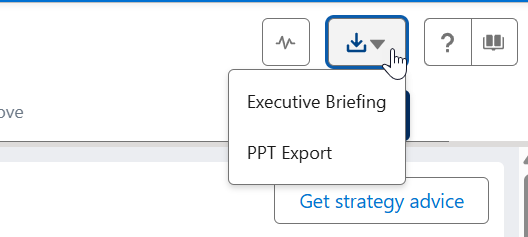
  2. Click the Exports button the in top right of the page and select PPT Export - as shown in the example below.
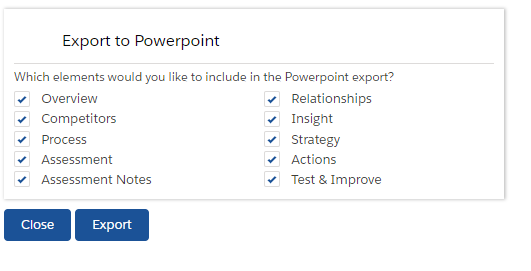
  3. The Export to Powerpoint dialog opens. Here you can select which elements of the opportunity you want to include in the PowerPoint file. (The set of options you get depends on the configuration of your org.)
  4. The Export Plan to Powerpoint dialog opens. Here you can select which elements of the plan you want to include in the PowerPoint file. (The set of options you get depends on the configuration of your org.)

  5. When you have made your selections, click Export. When you have made your selections, click Export.When the PowerPoint export file is ready, click the link Click to save.
  6. In the PowerPoint file itself, a small bit of editing is required to get the best view of exported account relationships (if relationships are included in your export).

    1. Ensure that Enable Editing is activated for the PPT file (this step should not be necessary on a Mac).

    2. Scroll down to the Relationships slide.

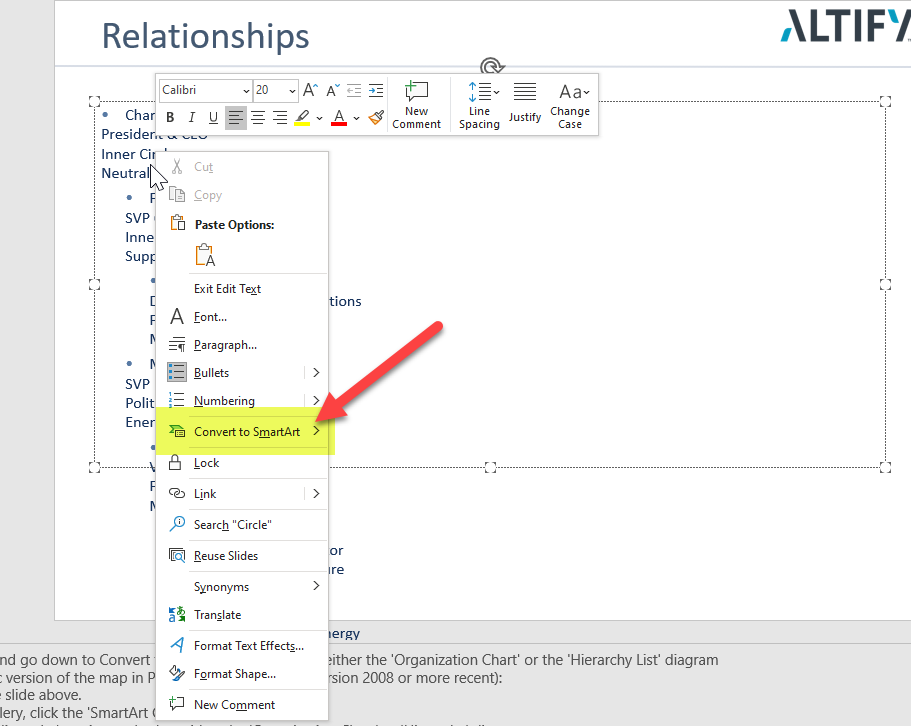
    3. Right-click on the list of contacts and select Convert to SmartArt (as shown in the example below).
      On a Mac, click into the bulleted list and in the PowerPoint Elements Gallery, select the SmartArt Graphics tab/button.

    4. Select the Organization Chart or the Hierarchy List diagram.

      On a Mac, click the Hierarchy section and select either the Organization Chart or Hierarchy diagram.

  7. In the PowerPoint file itself, a small bit of editing is required to get the best view of exported opportunity relationships (if relationships are included in your export).

    1. Ensure that Enable Editing is activated for the PPT file (this step should not be necessary on a Mac).

    2. Scroll down to the Relationships slide.

    3. Right-click on the list of contacts and select Convert to SmartArt (as shown in the example below).

      On a Mac, click into the bulleted list and in the PowerPoint Elements Gallery, select the SmartArt Graphics tab/button.

    4. Select the Organization Chart or the Hierarchy List diagram.

      On a Mac, click the Hierarchy section and select either the Organization Chart or Hierarchy diagram.

Exporting specific sections of an account's insight map

To generate a PPT of a specific section in an account's insight map, you need to access the insight map in slideshow mode.

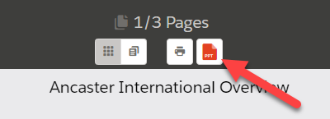
In this mode, go to the relevant section and click the PPT icon (as shown below) to generate a PPT file of that section of the insight map.

Exporting specific sections of an opportunity's insight map

To generate a PPT of a specific section in an opportunity's insight map, you need to access the insight map in slideshow mode.

In this mode, go to the relevant section and click the PPT icon (as shown below) to generate a PPT file of that section of the insight map.

PowerPoint Export File Name Format

Altify names PowerPoint export files as follows:

  • For PowerPoint exports from any tab in Opportunity Manager, including the Process tab, the format of the Powerpoint file name is 'OM_[Opportunity Name].pptx'
  • For PowerPoint exports of an insight map section, the format of the PowerPoint file name is 'InsightMap_[Insight Map Section Name].pptx'

  • For PowerPoint exports of an Account Manager plan, the format of the PowerPoint file name is 'AM_[Account Manager Plan Name].pptx'
  • For PowerPoint exports of an account plan, the format of the PowerPoint file name is 'AP_[Account Name].pptx'
  • For PowerPoint exports of an insight map section, the format of the PowerPoint file name is 'InsightMap_[Insight Map Section Name].pptx'

Configuring PowerPoint export options (administration)

An administrator can configure which product features (e.g. Objectives & Actions) are available for selection in a PowerPoint export. An administrator can configure which product features (e.g. Assessment) are available for selection in a PowerPoint export.. An administrator can alsoalso update stylistic elements such as the font color.

For more information, please talk to your Altify Administrator.

Troubleshooting: exporting very large Account Manager plans

Altify supports a PPT export size of about 130 slides. You may encounter an error if you attempt to export a very large Account Manager plan. In this scenario, you can export the plan to PowerPoint by doing the following:

  1. Close the error message and remove the JSON that was generated by your attempted export from the Documents folder in Salesforce.

  2. Follow the process documented above, selecting just one plan element in the Export Plan to Powerpoint dialog (step 3).

  3. Repeat the export process for each plan element (Insight Map, Opportunity Map, etc.).

  4. Manually combine your exported files into a single PPT file if required.