Editing or Deleting a Decision Criterion
A right-hand panel is displayed when you click the name of a decision criterion. Here you can edit the criterion as follows:
-
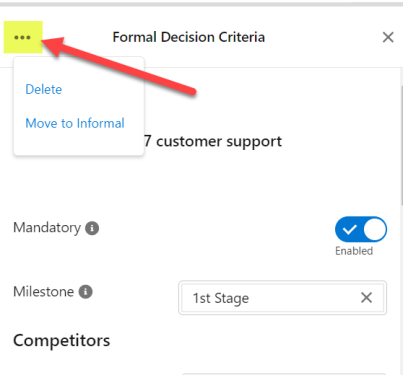
Change the criterion to formal or informal, or delete the criterion, by clicking the ellipsis icon in the upper left-hand corner - as shown below:
- Rename the criterion by clicking its name.
- Make the criterion Mandatory by setting the toggle to 'Enabled'.
-
Enter a Milestone for the criterion, or associate it with a milestone that has already been created on the opportunity. Milestones are stages in the customer's buying process for the current opportunity. By doing this, you are indicating that the criterion needs to be met at a particular stage, such as an initial RFI.
Milestones are specific to an opportunity and are limited to 80 characters.
-
Under Competitors, record how well your organization’s solution, and your competitors’ solutions, measure against the decision criterion.
This measurement is from your customer's point of view. You are recording whether they think a solution is better, the same or worse than the criterion they have provided.
-
Under Contacts, add or remove contacts for whom the criterion is of importance.
When you are adding a contact, the system automatically suggests contacts from the relationship maps of all opportunities associated with the account.
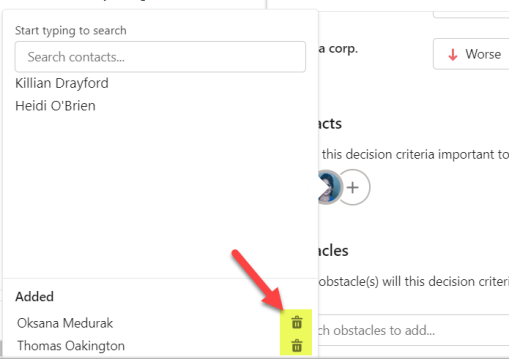
To remove a contact from the decision criterion, scroll down to the Added section and click the bin icon (highlighted below) next to the relevant contact.
-
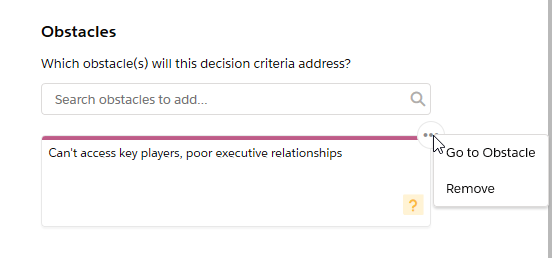
The Obstacles section allows you to link a decision criterion with an obstacle from the opportunity's insight map. In this way you can map how challenges faced by the customer directly impact upon their buying decision. Click the ellipsis icon in the upper right-hand corner of an obstacle card, as shown below, to remove it from the decision criterion or go the insight map.