Answering Row Details Questions
There are three ways to answer
-
Complete the Account Info section (if it is configured to be displayed by your admin)
Any of these options is enough to answer a question, but of course you can also combine them to provide a more comprehensive answer. Any text or attachment change updates the question's Last Modified date.
Note: Your answer is automatically displayed in other plans where the same question and account/division row occur. This includes Account Manager plans of another plan type and Altify Account Plans.
Tip: Prioritize questions for targeted accounts . An example of a targeted account is indicated below.
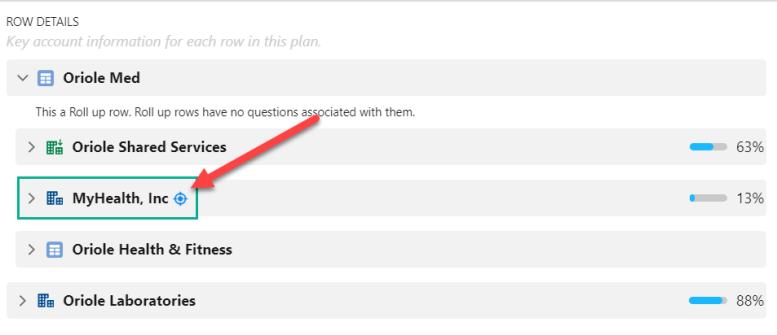
Complete the Details field
Entering text in the Details field. Click the pencil icon  (as indicated below) to enter your text and then click Save.
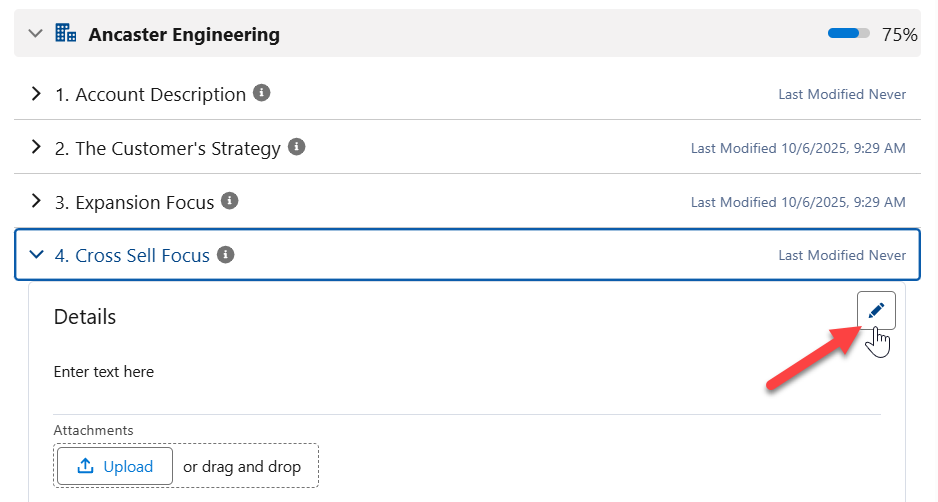
Upload an attachment or complete the Account Info section (if displayed) to supplement your answer, or click Next to move on to the next question.
Upload a file
Upload a file under Attachments (as indicated below). A drag and drop option is also available.
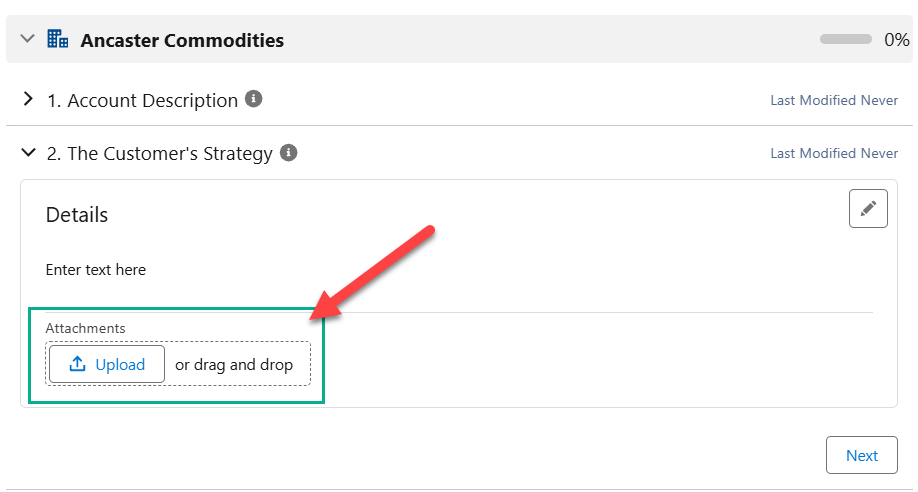
Complete the Details field or the Account Info section (if displayed) to supplement your answer, or click Next to move on to the next question.
Tip: Briefly summarize the content of an attached file in the Details field to encourage engagement by team members.
Complete the Account Info section
The Account Info section (shown below) is only displayed if an administrator has configured the question to include fields from the associated Salesforce Account record.
Click the pencil icon (as indicated below) to complete the fields and then click Save. Any data you enter is also saved to the Salesforce Account record.

Note: The Account Info section is not displayed for account divisions.
Complete the Details field or upload an attachment to supplement your answer, or click Next to move on to the next question.