Customizing the MaxAI Agent
These instructions explain how you can make adjustments to the MaxAI Revenue Execution agent so it matches your organization's terminology, processes, or methodology. Customization typically involves modifying Subagents and Actions in Agent Builder, and Prompt Templates in Prompt Builder.
Note: When performing any customization of a subagent or action, you will first need to ensure that the MaxAI Revenue Execution agent is deactivated.
This section covers the following:
Understand the Agentforce customization layers
Before making changes, it is important to understand the three key components:
Subagents
Subagents determine when the agent should trigger certain functionality. They contain:
-
Instructions for the agent
-
Example user inputs
-
Descriptions of when to use the subagent
You can modify subagents to:
-
Use different terminology
-
Add example phrases
-
Change instructions to reflect your internal methodology.
Actions
Actions define what the agent actually does when a subagent is triggered. Actions usually reference a Prompt Template that generates the AI response. You can modify the following elements of the MaxAI packaged actions:
-
Descriptions
-
Output instructions
-
Example phrasing
However, you cannot change the reference to the prompt template inside a packaged action (such as the actions delivered with the MaxAI extension package).
Prompt Templates
Prompt templates contain the AI instructions used to generate responses.
You may want to create a new prompt template in order to:
-
Adjust tone or formatting
-
Use company terminology
-
Modify how insights or outputs are generated.
Customizing subagents
If you simply want to change wording so that the MaxAI Revenue Execution agent mirrors your organization's terminology, (for example renaming the Altify feature 'insight map' to 'strategy map'), you could do the following:
-
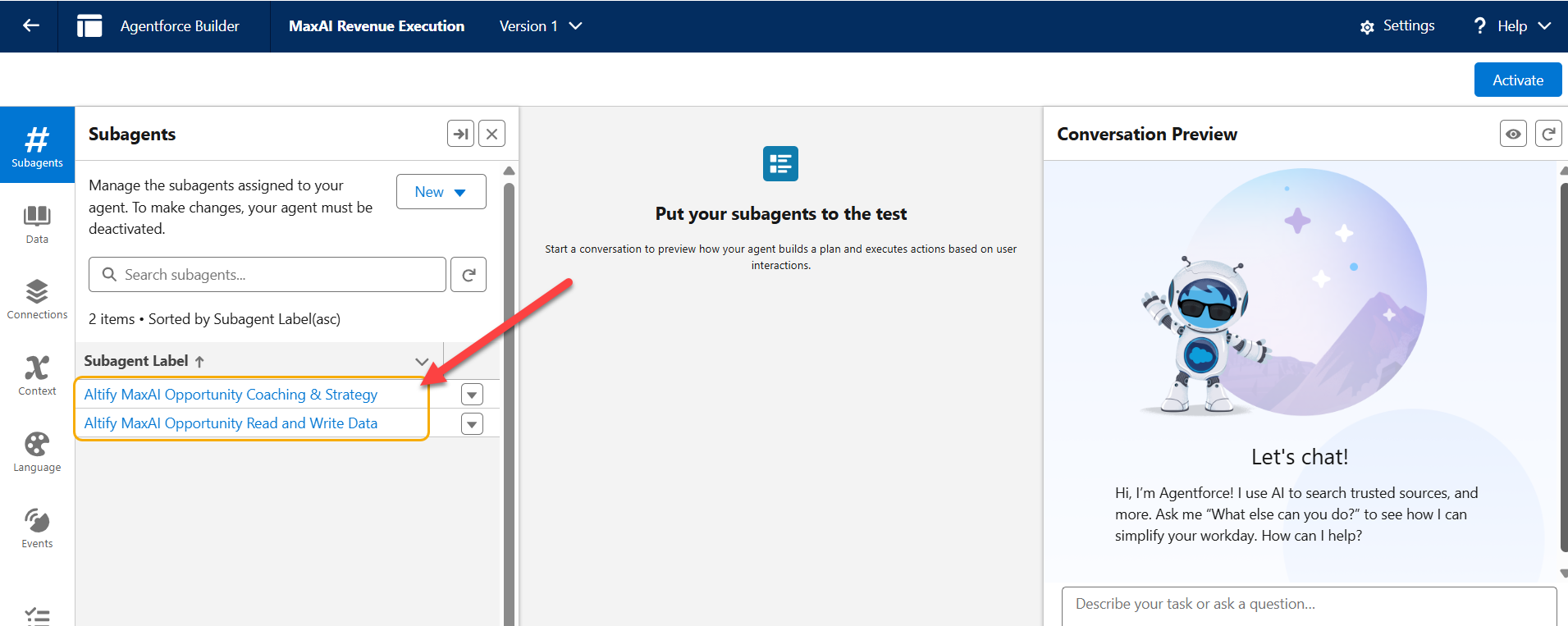
In Agentforce Builder, click on the relevant Subagent Label (as shown below) to open the Subagent Details pane.
-
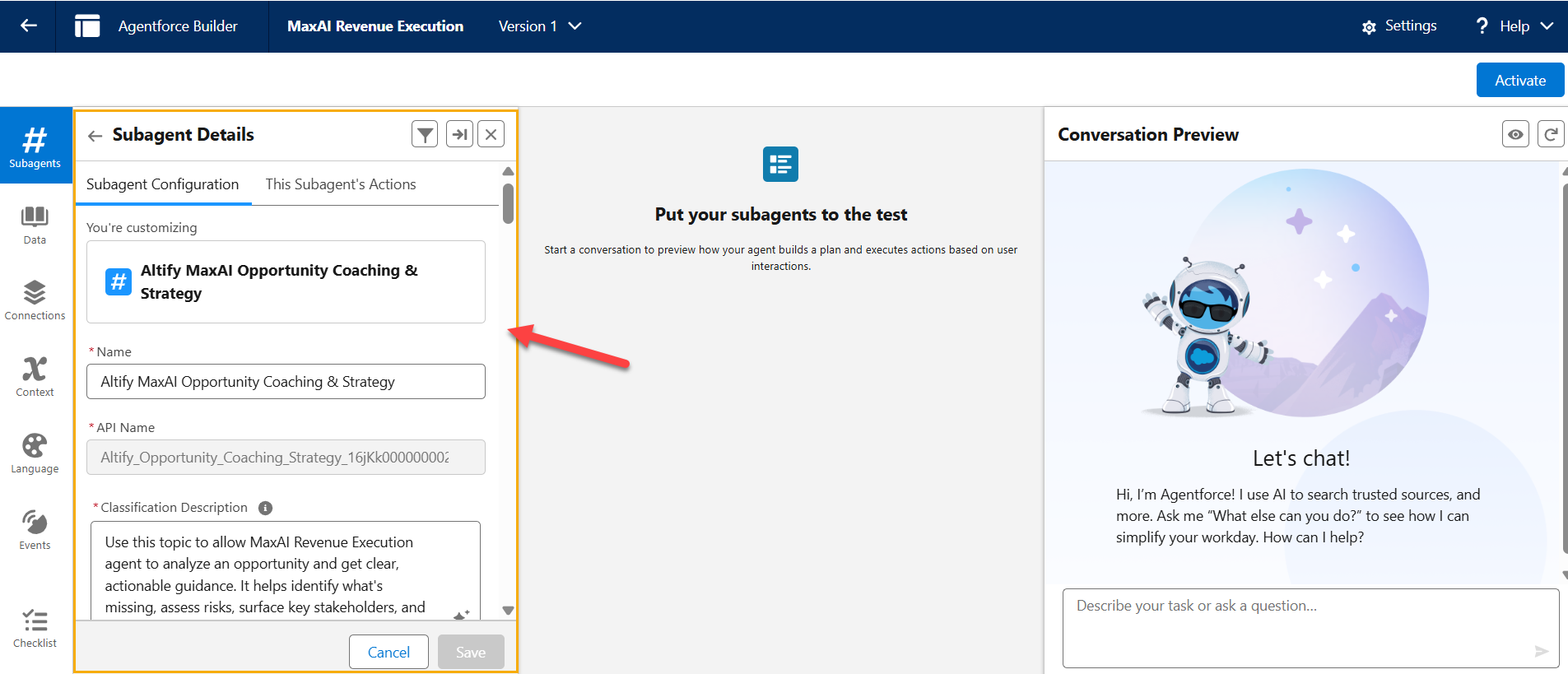
On the Subagent Configuration tab (shown below), scroll down and add or edit the following:
-
Instructions - add instructions such as:
-
'When a user refers to 'Strategy Map', interpret it as an Insight Map'.
-
-
Example Inputs:
-
'Create a strategy map for this account'
-
'Generate insights for this strategy map'
-
This helps the LLM correctly interpret user requests.
For more in-depth guidance on this, see Subagents in the Legacy Builder in the Salesforce Help.
Note: Please contact Altify Support before deciding to make any significant changes to the MaxAI packaged subagents, such as changes that affect when the subagent is called by the agent.
-
-
Click Save.
Customizing agent actions
You can also edit certain elements of Actions. For example, within the action you may adjust how the response is formatted or clarify instructions.
This allows minor adjustments to the agent's behavior without recreating the entire action.
-
In Agentforce Builder, click on the relevant Subagent Label to open the (aSubagent Details pane (as shown above).
-
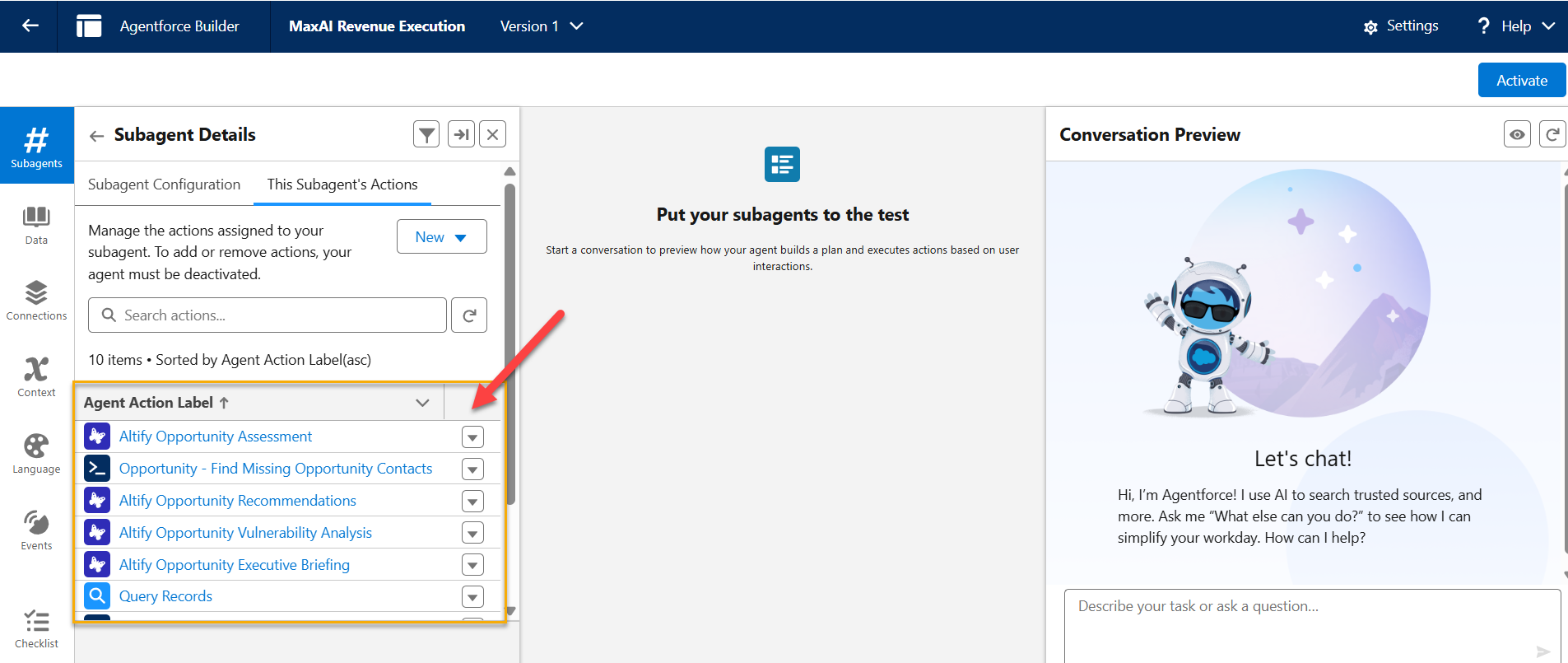
Select the This Subagent's Actions tab and click on the relevant Agent Action Label (as shown below).
-
In the View Action pane, click the Edit Action button.
-
Altify recommends that you only make minor adjustments such as tweaking how the response is formatted (Prompt Response Instructions) or additional clarification of instructions (Agent Action Instructions) - both of which are indicated below.
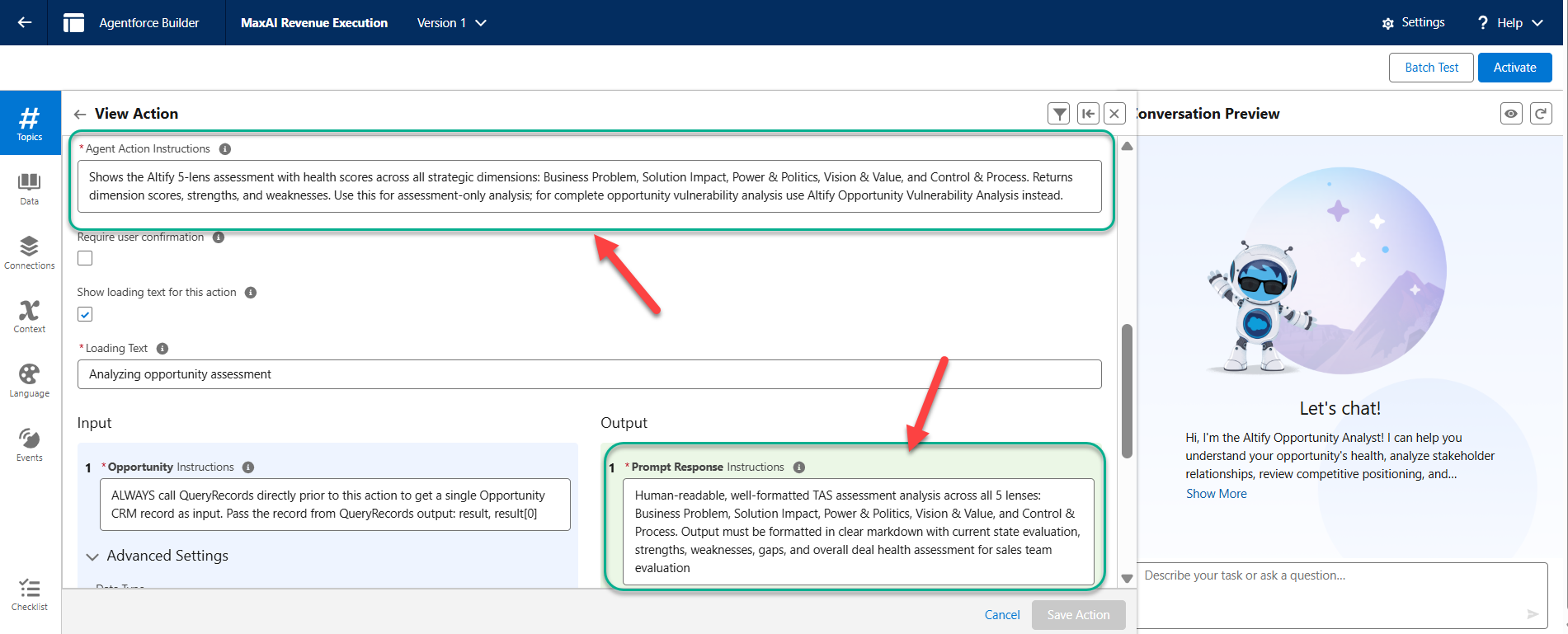
For more in-depth guidance on agent actions, see Agent Actions in the Legacy Builder in the Salesforce Help.
Note: Please contact Altify Support before deciding to make any significant changes to the MaxAI packaged actions, such as changes that affect when the action is called by the agent.
-
Click Save Action.
Customizing prompt templates (advanced customization)
If you require deeper changes to the MaxAI Revenue Execution agent, you can create a prompt template (using a copied packaged prompt template) and then create a new agent action to house it. (Remember, the referenced prompt template cannot be updated in our packaged agent actions).
This is the recommended approach if:
-
The existing prompt logic must change
-
Your company terminology differs significantly
-
The output structure needs modification.
-
Adjusting the AI Model used by the prompt template
For more in-depth guidance on prompt templates, see Prompt Builder in the Salesforce Help.
Note: Altify recommends that you contact Altify Support before attempting customization of prompt templates.
Important customization considerations
If you customize any components of the MaxAI Revenue Execution agent, you are effectively modifying the system behavior. Because of this, you should do the following
-
Test carefully any changes that you make
-
Maintain documentation if you customize subagents or actions - as you will need to re-implement your changes if you upgrade your MaxAI package in future.
-
Ensure involvement of Agentforce and Admin experts.
-
When you override a packaged prompt template by creating a new prompt template and a new action to house it, your components become independent of future MaxAI package updates. This means that MaxAI package upgrades will not automatically update your action and prompt template and you must reassess their impact when adding them to the new package.