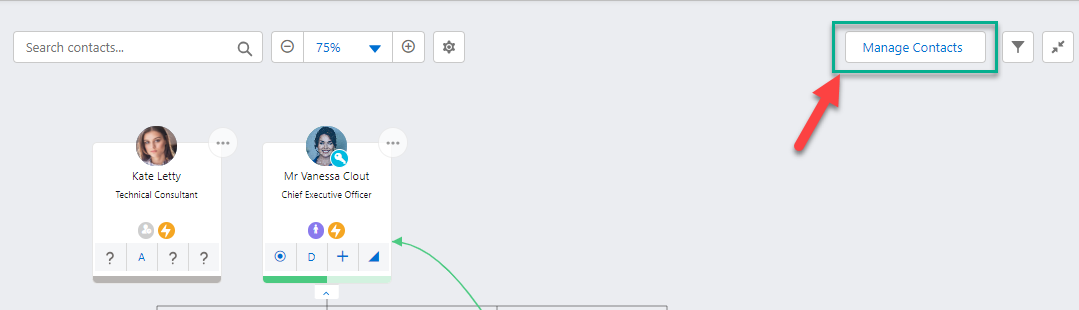
The Manage Contacts button in the top right of your relationship map (shown below) is where you access the functionality to add and remove contacts from your relationship map.
MaxAI Revenue Execution: Need an idea of who to add to your map? If your working on an opportunity relationship map and your org has the MaxAI Revenue Execution agent installed, try the following query: 'Are we missing any important contacts in this opportunity?'. You can also quickly add any missing contacts from any screen in Altify or Salesforce using the MaxAI agent.
For more prompt suggestions, see MaxAI Revenue Execution Agent: Prompt Library.
In the Manage Contacts panel, you can do the following:
-
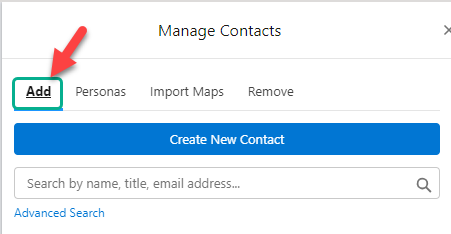
Add Contacts (Add tab as shown below): add existing Salesforce contacts (from anywhere in your Salesforce org) to the map. For further information, see Adding Existing Contacts.
-
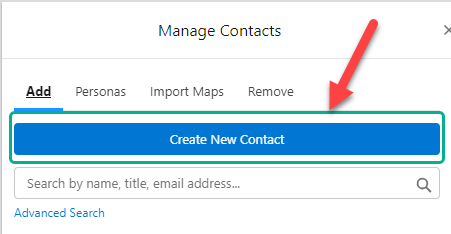
Create New Contact (also on the Add tab as shown below): add someone to the map who doesn't already have a Salesforce Contact record, creating that record at the same time. See Adding a New Contact.
-
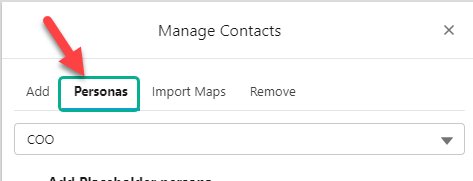
Add Contacts with a Persona (Personas tab as shown below): search associated relationship maps for contacts with a specific business persona (such as CEO) and add them - or add a persona placeholder until such time as the relevant contact is identified. See Adding Persona Contacts or a Persona Placeholder.
-
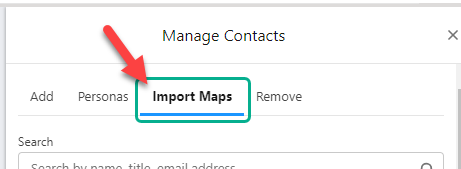
Add Contacts from a Specific Map (Import Maps tab as shown below): find and add contacts from a specific account or opportunity relationship map.
-
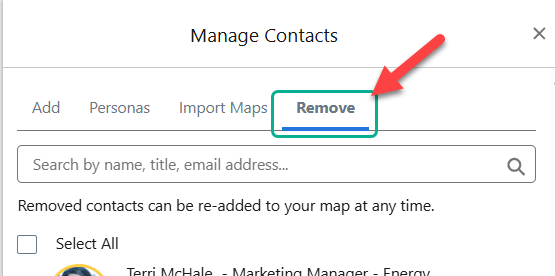
Remove Contacts (Remove tab as shown below) : remove one or more contacts from the relationship map. See Removing Contacts from the Relationship Map.