Assigning Contacts to Divisions
If divisions are created for your account, you can view contacts associated with a particular division, or all contacts who are added to the map (see Viewing Division Contacts (Account Maps Only)).
Individual contacts can be assigned to account divisions on their information panel.
When you are viewing the account view of the map, you can assign multiple contacts to a division. To do this, select Manage Contacts > Assign to Division: a dialog opens where you can assign contacts to the selected division.
In the Search box, you can search by Name, Email, Reports To, Department and Account.
The filter 'pills' can also help to refine your search of contacts:
-
Show just the Key Players on the map of the selected account.
-
Show only Mentors and Supporters on the map.
-
Show Contacts with High Coverage (those contacts with whom your company has an 'In-depth' level of coverage).
You cannot select contacts who are already assigned to the currently selected division. Click the toggle Hide contacts already assigned to hide those grayed out contacts.
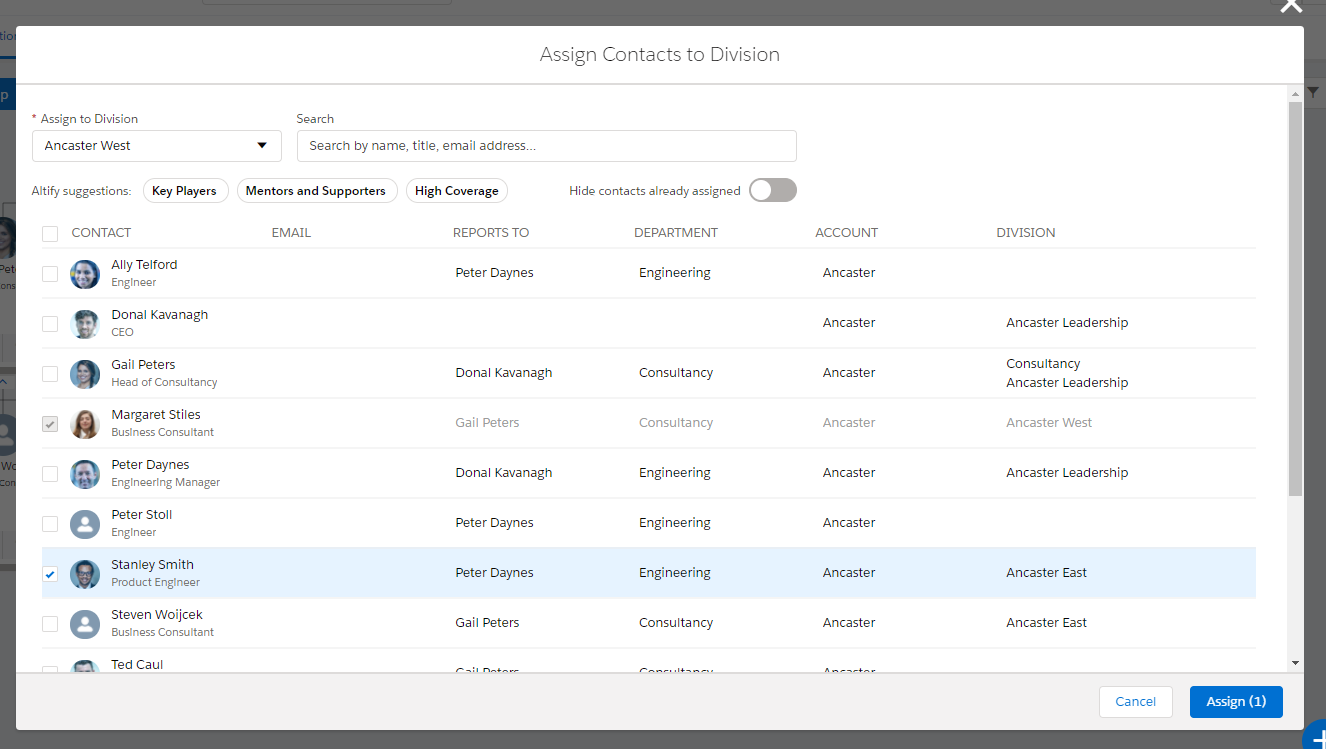
When you click Assign, the contacts you selected are added to the division view of the relationship map.
To remove a contact from a division, see Removing a Contact from a Division View.